
Install the chat on your website
You add the chat to your site by pasting code snippets. The look of the chat is set in the admin, so you paste the snippets once.
Before you start
Section titled “Before you start”You need a chat bot with an Amio Chat channel. See Webchat.
Where to find the snippets
Section titled “Where to find the snippets”- Open Bots and select your bot, then the Amio Chat channel.
- Check the theme and texts, then select Deploy chat.
- The Install the chat on your site dialog opens. Use the JavaScript or Google Tag Manager tab and select Copy.
The snippets already contain your channel ID. The same dialog appears at the end of the onboarding flow.
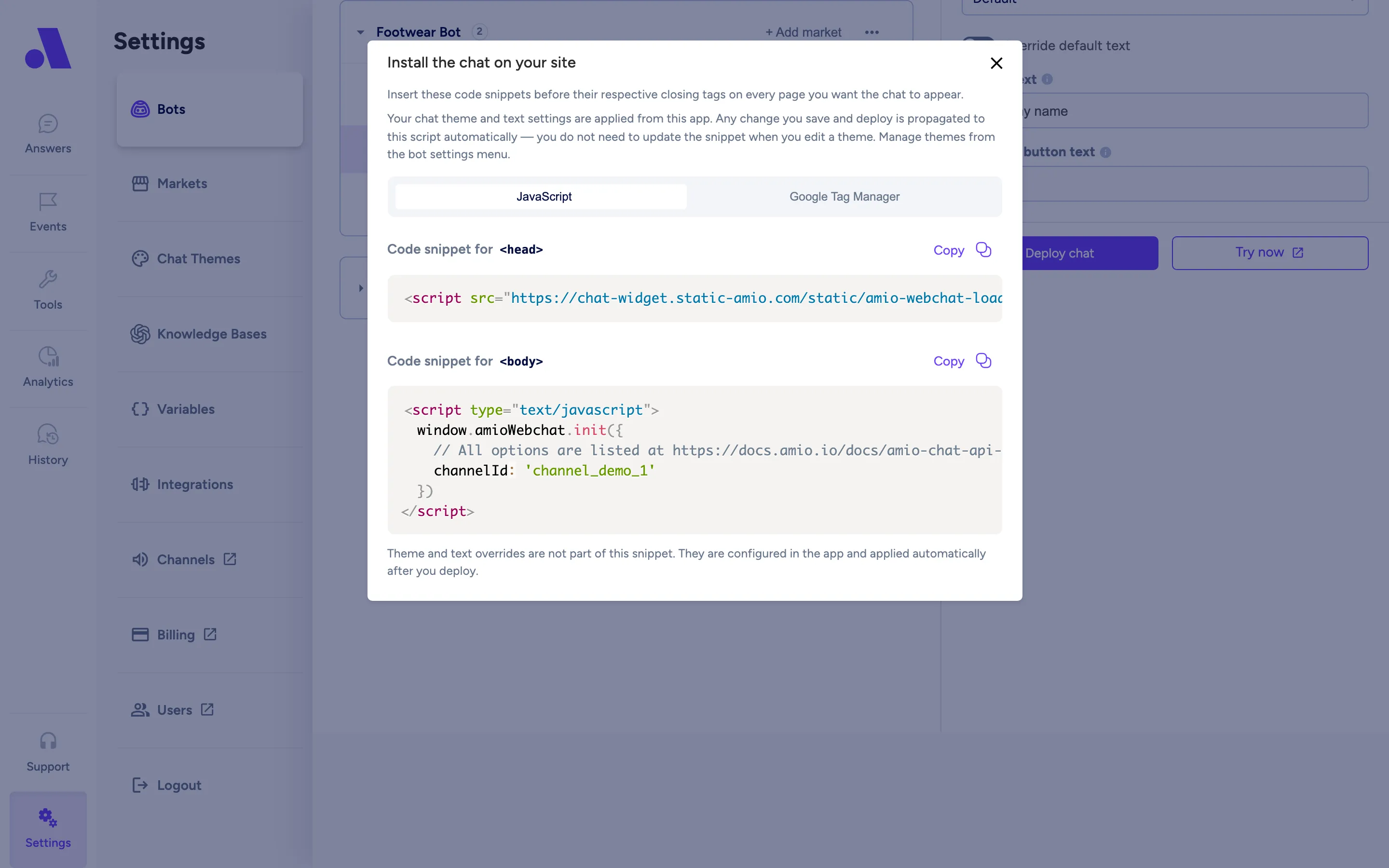
JavaScript snippets
Section titled “JavaScript snippets”Add the chat on every page where it should appear. Put the first snippet before the closing </head> tag and the second before the closing </body> tag.
Head:
<script src="https://chat-widget.static-amio.com/static/amio-webchat-loader.min.js" type="text/javascript"></script>Body:
<script type="text/javascript"> window.amioWebchat.init({ channelId: 'YOUR_CHANNEL_ID' })</script>Google Tag Manager
Section titled “Google Tag Manager”Use one tag instead of two snippets. In Google Tag Manager create a Custom HTML tag, paste the code below and trigger it on the pages where the chat should appear.
<script> (function(d, s, id) { if (d.getElementById(id)) return; var js = d.createElement(s); js.async = true; js.src = "https://chat-widget.static-amio.com/static/amio-webchat-loader.min.js"; js.id = id; js.onload = function () { window.amioWebchat.init({ channelId: 'YOUR_CHANNEL_ID' }); }; d.head.appendChild(js); }) (document, 'script', 'amio-webchat');</script>Theme changes
Section titled “Theme changes”Your chat theme and text settings are applied from the admin. When you save and deploy a change, it reaches your site automatically. You do not need to update the snippet when you edit a theme.
Optional settings
Section titled “Optional settings”You can pass more options to init next to channelId. These are read by the loader script.
| Option | What it does |
|---|---|
startOpened |
Opens the chat when the page loads (true). |
lang |
Language code of the chat window, for example 'cs' or 'de'. Without it, the language set for the channel is used, and 'en' if none is set. |
hideLauncher |
'never' (default) always shows the launcher. 'chatOpen' hides it while the chat is open. 'always' never shows it. |
hideCloseButton, hideHeader |
Hide the close button or the header. |
forceFullScreen |
Shows the chat in full screen. |
chatWindowPosition |
Set to 'left' to open the wide chat window on the left. |
wideButton |
Uses a wide launcher button. |
container |
Mounts the chat inside a page element instead of floating. Give the element an explicit height. |
externalContactId |
Your own ID for the visitor. |
storageType |
'local' (default) keeps the session in the browser’s localStorage, 'session' in sessionStorage. |
theme |
Name of a built-in colour theme: 'red', 'green' or 'blue' (default). The theme you deploy from the admin is applied on top. |
logoUrl, launcherImageUrl |
URL of the logo in the header and of the image on the launcher. |
themeOverride, langOverride |
Objects that change theme colours or chat texts for this page only. See below. |
zIndex, iframeOffsetX, iframeOffsetY |
Position and stacking of the floating chat. |
showVoice, disablePopUpMessages, disableAmioLink |
Turn voice, pop-up messages or the Amio link on or off. |
Override the theme or texts
Section titled “Override the theme or texts”themeOverride is merged over the theme from the admin, so you only pass the values you want to change. langOverride does the same for the chat texts of the selected lang.
window.amioWebchat.init({ channelId: 'YOUR_CHANNEL_ID', themeOverride: { header: { bg: '#222222', text: '#ffffff' } }, langOverride: { welcome: 'Hi, how can we help?', buttonTitle: 'Ask us' }})Theme sections are header, launcher, messageBubble, messageList, sentMessage, receivedMessage, userInput, statusInfo and font. Colours are CSS colour values and sizes are CSS lengths. Edit a full theme in Themes to see every property.
Text keys are interface.* (for example writeMessage, send, attachFile, chatOffline), error.* (for example messageSend), welcome and buttonTitle. English defaults are 'Write a message...', 'Send' and 'Need help?'.
After init, your page can open the chat, send messages for the visitor and listen to chat events for your analytics: see Control the chat from your page. To build your own chat window instead, see the Chat SDK reference.
Verify the installation
Section titled “Verify the installation”- Open a page where you added the snippets, in a new private window.
- Look for the chat launcher button in the bottom corner.
- Open the chat and send a message. The bot should answer.
- If you changed the theme, deploy again and reload the page to see the change.