
Register a WhatsApp Business account
Before Amio can set up your WhatsApp channel, you need a WhatsApp Business account (WABA) in Meta, with a phone number registered for the WhatsApp Business Platform (Cloud API). The account belongs to your company: you manage it in Meta, and Amio only gets the access it needs to send and receive messages.
What you need
Section titled “What you need”- A verified Meta business account (Business Manager). If you have none, create one and verify your business first.
- A person with admin access to that business account who is also registered as a Meta developer.
- A phone number that meets the phone number requirements.
- A display name for the account (see Meta’s display name guidelines), your time zone and your business category.
Phone number requirements
Section titled “Phone number requirements”The number you register must:
- include the country code and area code,
- belong to the company that the WhatsApp account represents,
- be able to receive a call or an SMS (also from another country) so Meta can send the verification code,
- not be registered with the WhatsApp Business Platform (API) before.
Mobile and landline numbers both work. A number that is currently used in the WhatsApp or WhatsApp Business mobile app must be migrated first.
Toll-free numbers
Section titled “Toll-free numbers”Toll-free numbers (for example 1-800) usually sit behind an IVR menu that the automatic verification call can’t navigate. If you can add an exception to your IVR, Meta can tell you the one or two numbers that the verification call comes from. Allow those numbers and route the call to an employee or a voicemail where you can note the code.
Register the account in Meta
Section titled “Register the account in Meta”The screenshots on this page are from 2023. Meta changes its screens often, so names and layout may differ slightly.
-
In Meta Business Suite, create a business account or open your existing one, and verify your business. Note the business ID.

-
Go to Meta for Developers and create a new app of type Business. Use one app dedicated to WhatsApp.
-
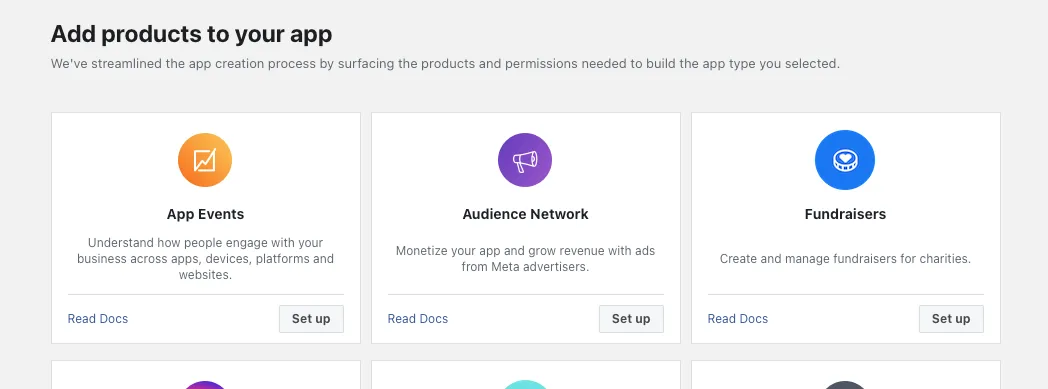
In the app dashboard, add the WhatsApp product.
-
In the WhatsApp API Setup section, choose Add phone number.

-
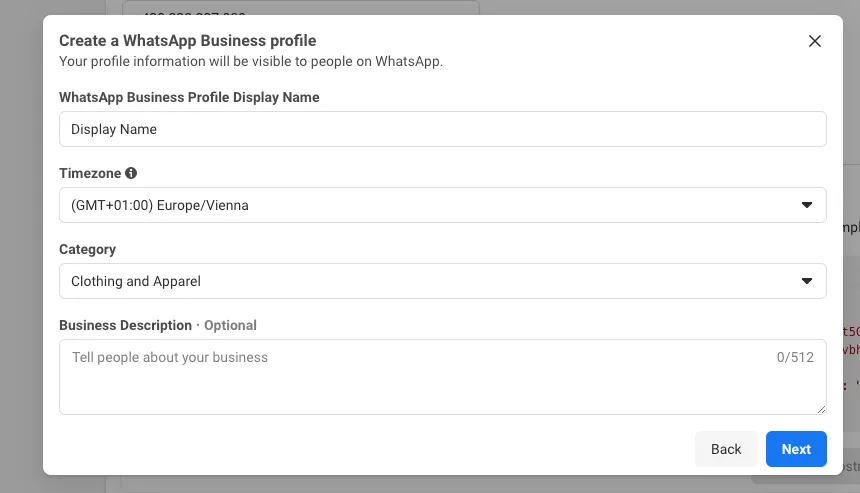
Enter the display name, time zone, business category and, optionally, a business description.
-
Enter the phone number and choose to verify it by call or SMS, then enter the code.
-
In API Setup, select your new number and copy two IDs: the WhatsApp Business Account ID and the Phone number ID.

Give Amio access to the account
Section titled “Give Amio access to the account”Amio acts on your account through a system user that you create. This keeps the integration under your control: you can revoke it in Meta at any time.
-
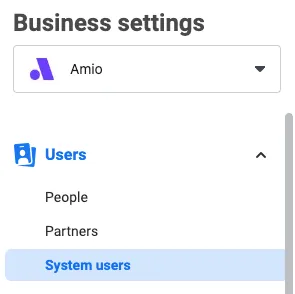
In your business settings, open Users > System users and add a system user with the Admin role.
-
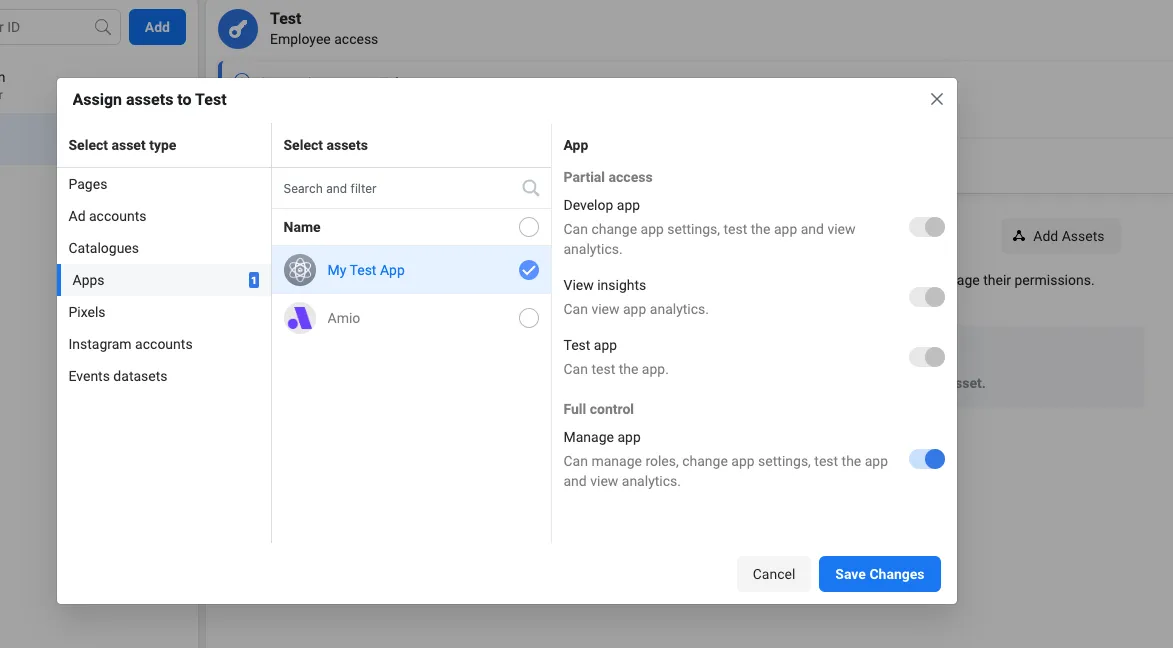
Choose Add assets, select your WhatsApp app and give the system user full control (Manage app).
-
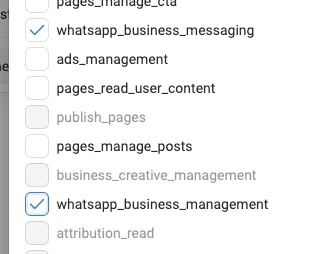
Open Generate new token, select your app, set the token to never expire, and tick
whatsapp_business_managementandwhatsapp_business_messaging. Copy the token.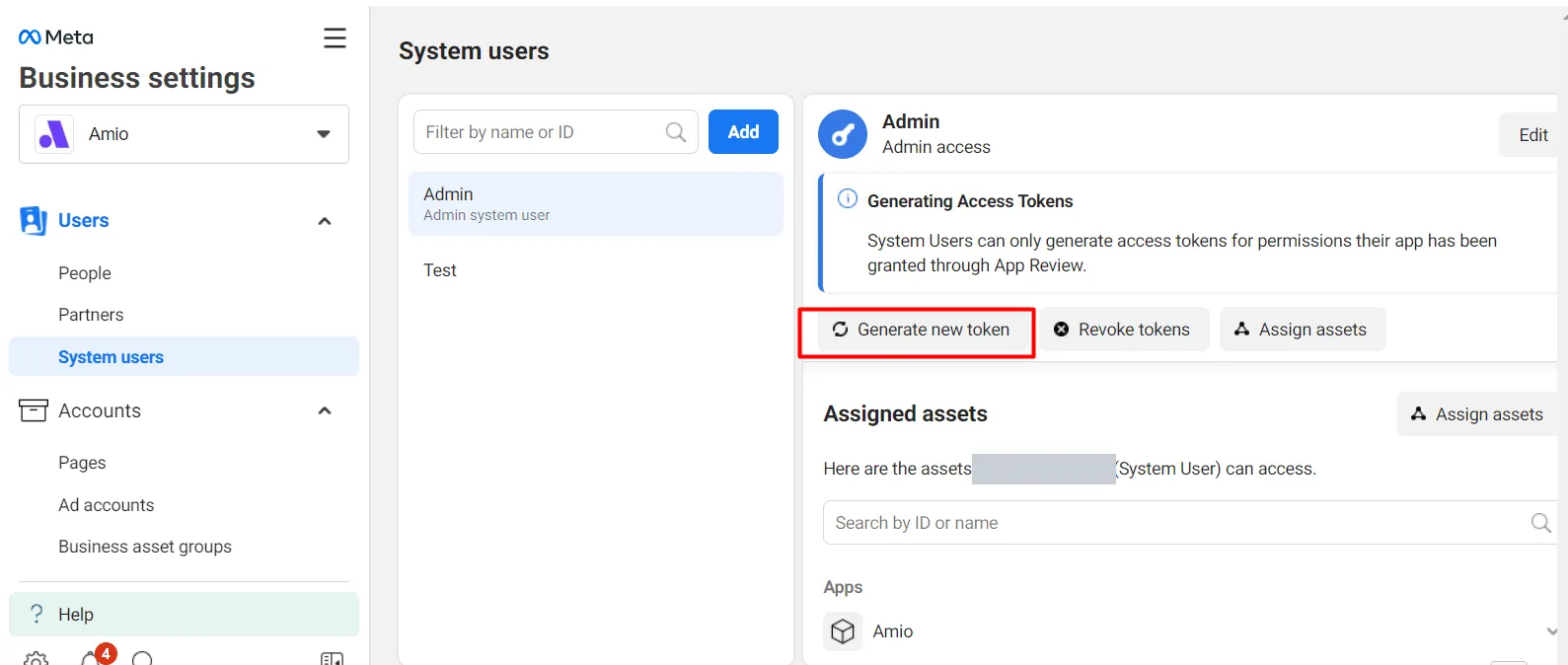
-
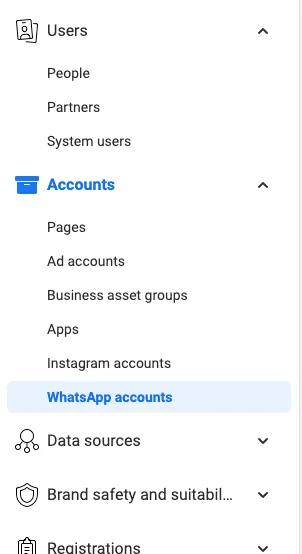
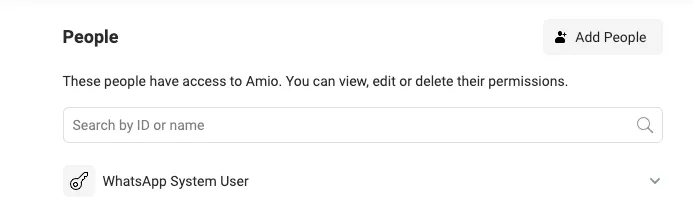
Under Accounts > WhatsApp accounts, open your account and check that the system user has access. If not, choose Add people and add it.
-
In your app’s Settings > Basic, copy the App secret.
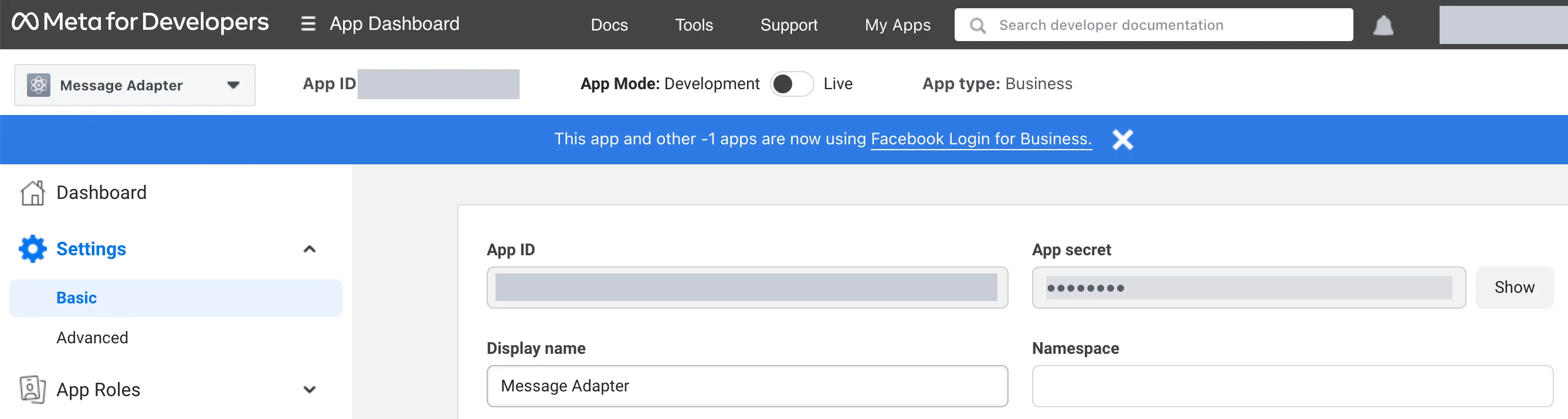
Then send Amio support the following:
- the access token,
- the app secret,
- the WhatsApp Business Account ID,
- the Phone number ID,
- the phone number.
Support creates the WhatsApp channel for your organization and tells you what to enter in Meta’s webhook settings. After that, you deploy your bot to the channel yourself.
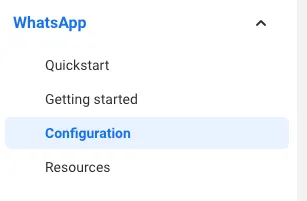
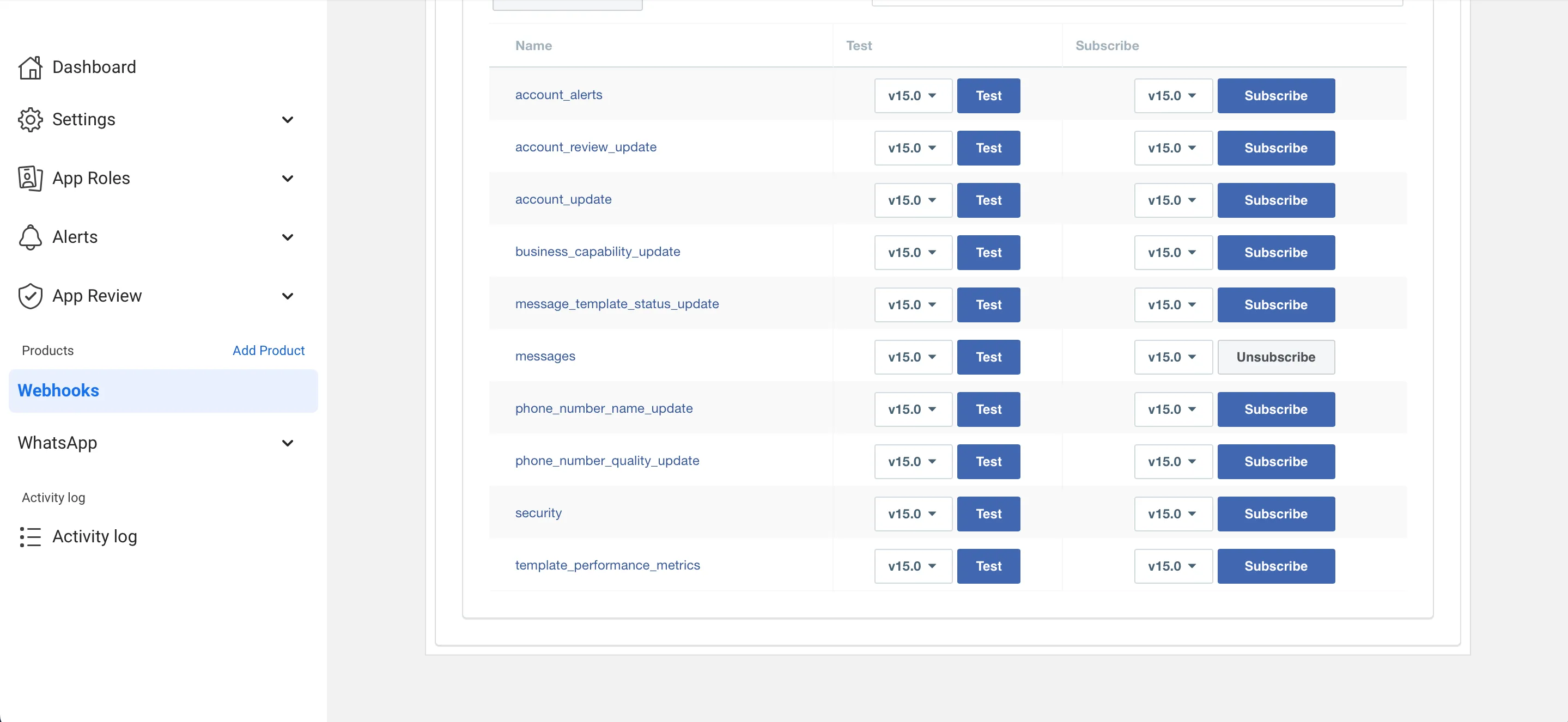
The webhook settings are in your app under WhatsApp > Configuration. Subscribe to the messages field.
Move a number from another WhatsApp provider
Section titled “Move a number from another WhatsApp provider”You can move a number that is live with another provider to Amio. For the number you need to:
- turn off two-step verification for the number in Meta,
- be able to receive a 6-digit PIN by SMS or voice call,
- keep the number live with the current provider until the move is done.
Contact support@amio.io to arrange the move.
Get an official business account
Section titled “Get an official business account”An official business account is verified by WhatsApp. It shows a green checkmark in the profile and chat header, and customers see your name even if they haven’t saved your number. Ask for it at support@amio.io.
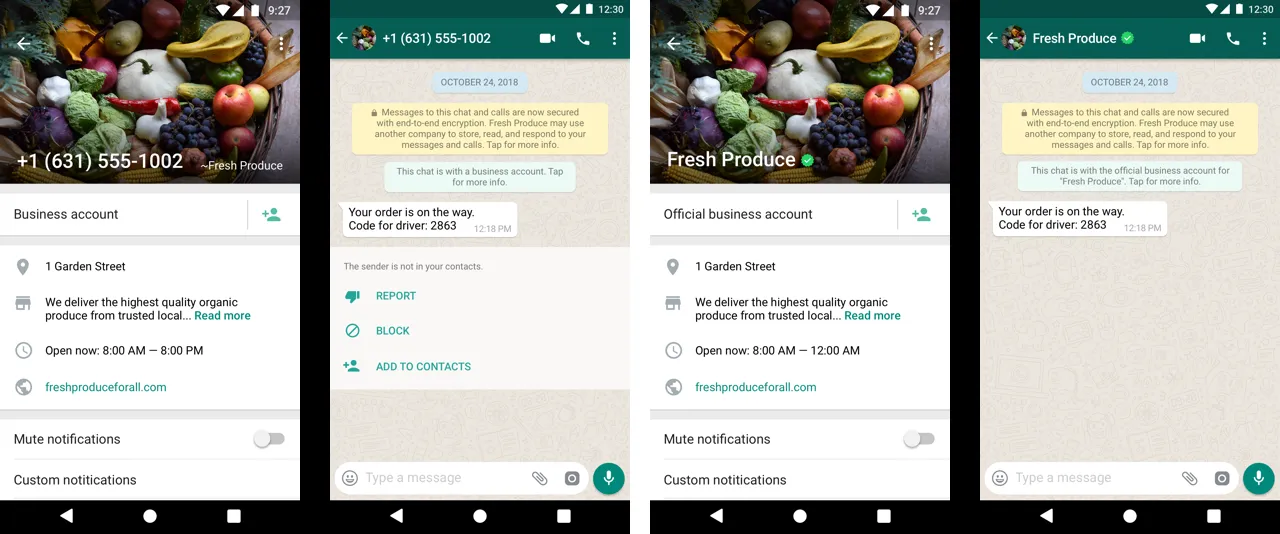
Meta decides who gets the badge. What helps:
- Your Meta business verification is complete.
- Your website uses HTTPS and matches the business name, and your social media accounts, especially Facebook, are linked to the business.
- Your contact details match the WhatsApp number.
- The business is publicly known, for example through press coverage or trusted websites.
- The WhatsApp display name matches the registered business name and the profile picture is your logo.
- You avoid misleading or overly generic names.
Avoid getting your account blocked
Section titled “Avoid getting your account blocked”WhatsApp checks opt-in flows and tracks quality ratings. In rare cases it blocks a business account, and unblocking is hard. Don’t spam customers and collect proper opt-in.
Meta blocks only the accounts tied to the business that broke the rules. If another company’s account on Amio is blocked, yours is not affected as long as it belongs to your own business ID.