
Show the chat in a mobile app
Amio has no mobile SDK. To put the chat in your app, load a web page that contains the webchat in a WebView and start the chat full screen.
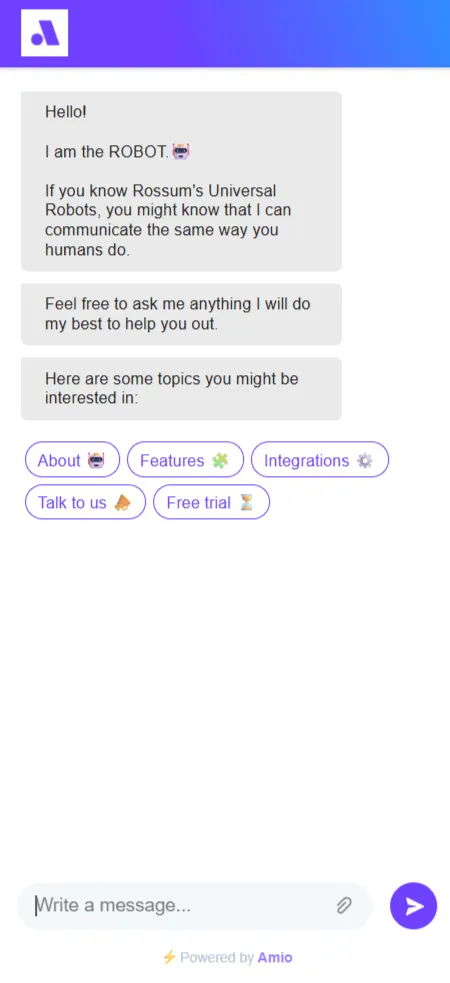
Set it up
Section titled “Set it up”- Create a small web page that includes the two webchat snippets from Install the chat on your website.
- In
init, add the three options below, next to yourchannelId. - Load that page in the WebView of your app.
window.amioWebchat.init({ channelId: 'YOUR_CHANNEL_ID', startOpened: true, hideCloseButton: true, forceFullScreen: true})| Option | What it does in the app |
|---|---|
startOpened: true |
The chat is open as soon as the page loads, with no launcher to tap. |
hideCloseButton: true |
Hides the close button in the chat header, so the visitor cannot close the chat inside the WebView. Use the back button or header of your app instead. |
forceFullScreen: true |
The chat fills the whole WebView, as it does on a phone-sized browser window. |
Each of these must be the boolean true, not the string 'true'.
Keep the conversation across sessions
Section titled “Keep the conversation across sessions”Pass externalContactId with a stable ID for the user, for example their account ID, and store it on the device. The visitor then sees the same conversation after reinstalling the app or opening it on another device. Without it, the history is kept in the WebView’s own storage and can be lost when the OS clears it. See Install the chat on your website for all options.
Control the chat from your app
Section titled “Control the chat from your app”Your page can also open the chat, send a message for the visitor and listen to events. See Control the chat from your page.