
Tools
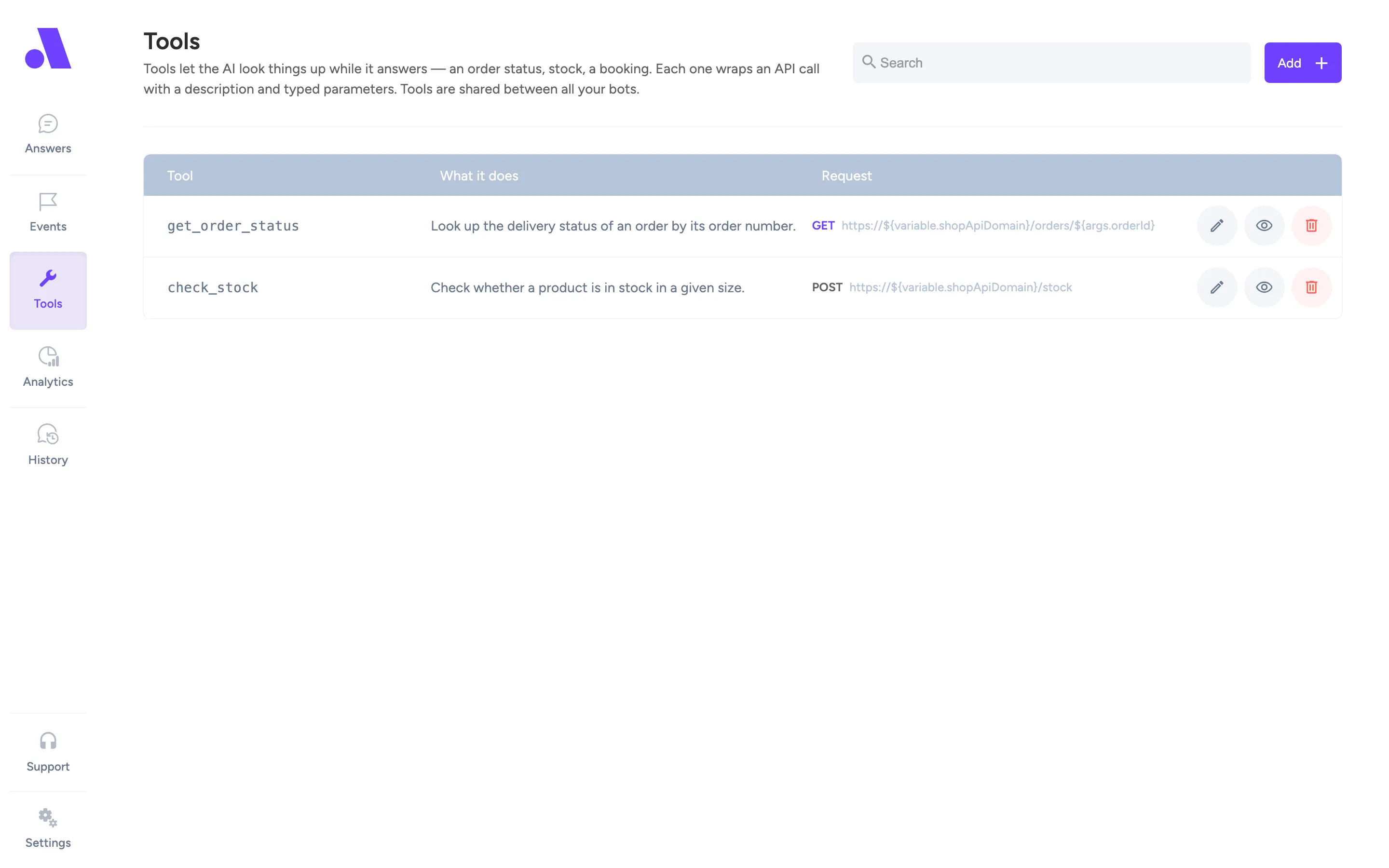
The Tools screen (/tools) lists every tool you can give to the AI agent, such as an order status lookup, a stock check or a booking. Tools are shared between all your bots.
What you can do here
Section titled “What you can do here”- Search tools by name, description or URL with the search box.
- Add a tool with Add.
- Open a tool by clicking its row, or with the Edit tool icon.
- See which answers, events and blocks use a tool with the Where this tool is used icon.
- Remove a tool with the Delete tool icon.
Each row shows the tool name, what it does, and its request: the HTTP method and URL, or an MCP badge for MCP server tools. If nothing matches your search, the table says “No tools match your search.” With no tools at all it says “No tools yet.”
Add an HTTP tool
Section titled “Add an HTTP tool”- Click Add. The editor opens on the right.
- Leave Type on HTTP request.
- Enter a Name (for example
get_order_status) and a Description that says when the AI should call the tool. - Under Parameters, click Add parameter for each value the AI should work out from the conversation.
- Under Request, pick the Method, enter the URL, and fill in headers, body or query parameters as needed.
- Optionally write Response handling instructions.
- Click Add tool.
Use ${args.name} anywhere in the URL, headers, body or query parameters to insert a parameter the AI filled in. Use ${variable.name} to insert a variable that is resolved per bot and market, for example your domain or an API key.
Add an MCP server
Section titled “Add an MCP server”- Click Add and switch Type to MCP server.
- Enter the Name and Description.
- Under MCP server, enter the URL and, if the server needs authentication, a header such as
Authorization: Bearer ${variable.notion_mcp_token}. - Under Available tools, optionally pick Load as bot, then click Load tools.
- Tick the tools you want the AI to be able to use.
- Click Add tool.
Only the ticked tools are offered to the AI. If none are ticked, it gets none. A tool that was selected earlier but no longer exists on the server shows “not found on the server”.
Test a tool
Section titled “Test a tool”Open an existing HTTP tool and scroll to Try it.
- If you have several bots, choose Run as bot. This decides which values the
${variable.*}placeholders use. - Fill in the parameters. Required ones are marked with an asterisk.
- Click Send request.
You see the HTTP status (or “Failed”), the response time in ms, the request that was sent and the raw response from your API. This is not an AI answer. The test runs the saved version, so save your edits first.
Delete a tool
Section titled “Delete a tool”Click the Delete tool icon. If an answer, event or block still uses the tool, Amio does not delete it and opens the usages panel instead. It lists those items with a Show button for each. Remove the tool from them, then delete it. When nothing uses the tool, the panel says it can be deleted.
Fields
Section titled “Fields”| Field | What it does |
|---|---|
| Type | HTTP request or MCP server. You pick it when you add the tool and cannot change it afterwards. |
| Name | Lowercase letters, digits and underscores. The AI reads the name to decide when to call the tool. |
| Description | Be specific, this is how the AI tells the tool apart from the others. Keep it about when to call the tool. What to do with the answer belongs in Response handling. |
| Parameters: Name | The parameter name, for example orderId. Names must be unique. |
| Parameters: Type | string, number, integer, boolean, array or object. |
| Parameters: Description the AI reads | Tells the AI what value to put in, for example “The order number the customer gave, e.g. AB-10293”. |
| Parameters: Req. | Tick if the AI must always provide the value. |
| Method | GET, POST, PUT, PATCH or DELETE. |
| URL (HTTP) | The address the AI calls. ${args.name} is filled in by the AI. ${variable.name} is filled per bot and market. |
| Headers / Body / Query params | Switch between the three tabs. Headers and query parameters are entered as JSON, the body as text. |
| Give up after | Time limit in milliseconds. The customer is waiting, so keep it short. The default is 10000. |
| URL (MCP) | Address of the MCP server. |
| Headers (MCP) | JSON headers sent to the server, usually for authentication. |
| Load as bot | Decides which values the ${variable.*} placeholders resolve to when tools are loaded. Shown when you have bots to choose from. |
| Load tools | Fetches the tool list from the MCP server. Needs the URL first. |
| Response handling | Optional. Read by the AI only after the tool has run. Go through every outcome the API can return, including a failure, and say what the customer should hear for each. Up to 8000 characters. |
Related
Section titled “Related”- Tools in the AI agent
- AI agent
- Variables
- Answers screen, Events screen and Blocks screen, where tools are used