
AI agent
Two places control the AI. The AI agent settings of a bot decide who the assistant is and how it sounds. The AI answer step inside an answer decides what the AI does for one topic.
AI agent settings
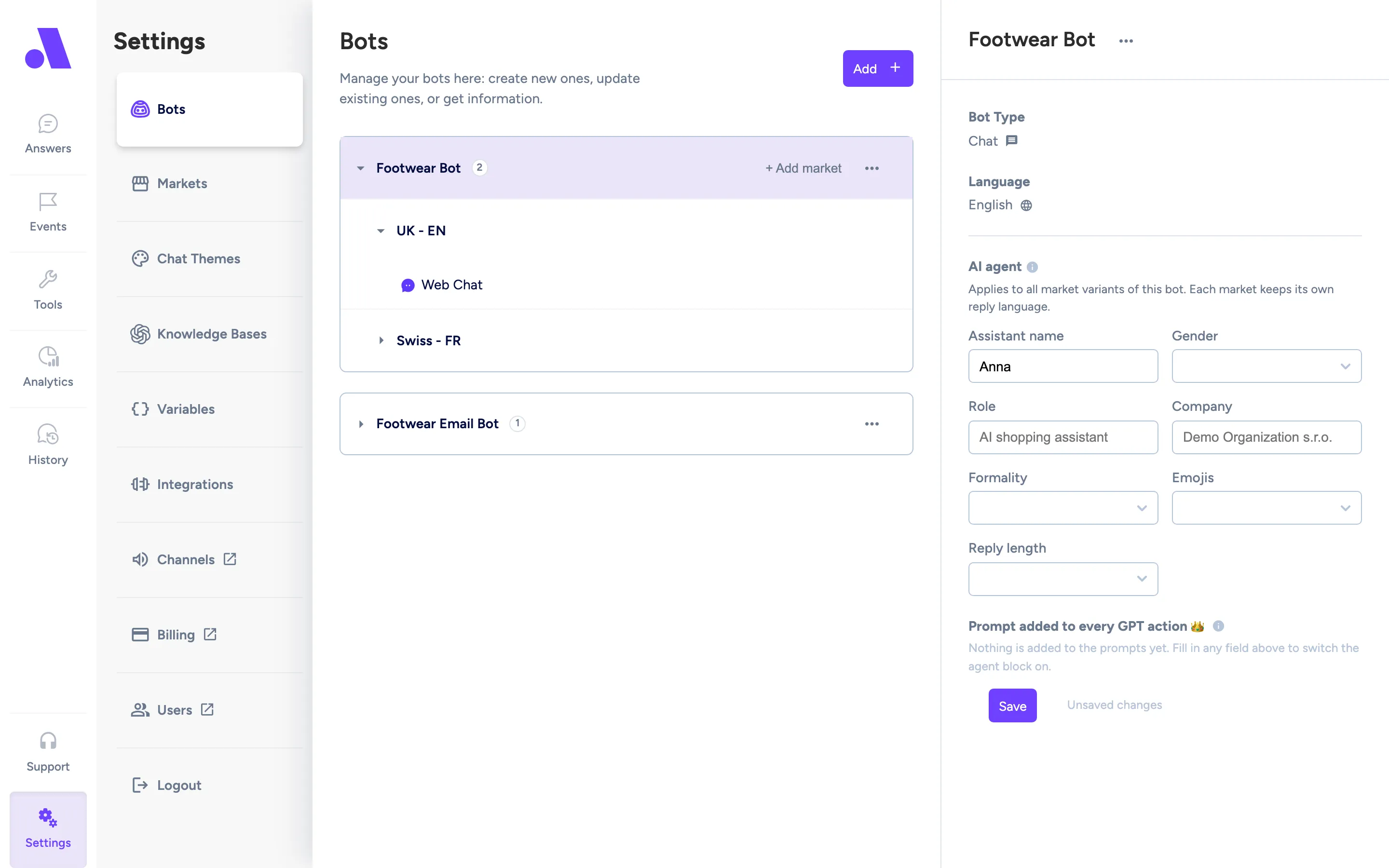
Section titled “AI agent settings”These settings apply to every AI answer of the bot, so you set them once instead of repeating them in each answer’s instructions. Your instructions in each answer still apply after them.
- Open Settings, then Bots, and select the bot.
- Scroll to AI agent.
- Fill in the fields you want.
- Click Save.
| Field | What it does |
|---|---|
| Assistant name | The name the assistant uses for itself, for example “Anna”. |
| Gender | Female or Male. |
| Role | What the assistant is, for example “AI shopping assistant”. |
| Company | The company it speaks for. The field suggests a name. |
| Formality | Formal or Informal. |
| Emojis | No emojis, In moderation, or Freely. |
| Reply length | Short and to the point, or Detailed, with reasoning. |
Each field can stay on Not set. A field you leave unset adds nothing to the prompt. Below the fields, a read-only box shows the text that will be added. It is empty until you fill in a field.
For a bot with several markets, the settings apply to all markets. Each market keeps its own reply language. Set them on the main bot, not on a market version.
On an email bot, setting Formality, Emojis or Reply length replaces the default email tone, which is professional and without emojis.
The AI answer step
Section titled “The AI answer step”In an answer, open the add menu under the last bubble and choose AI answer. Click the AI bubble to edit it.
| Setting | What it does |
|---|---|
| Model (dropdown at the top) | Which AI model writes the reply. |
| Knowledge base | What the AI answers from. None (general answer) means it uses only your instructions. See knowledge bases. |
| Instructions | What the AI should do in this answer. Example: “Reply to questions regarding shoes. On any question that doesn’t regard shoes, reply: I am sorry, I answer only questions about shoes.” |
| Tools | API calls the AI may make while writing. It only sees the tools you tick. See tools. |
| Allow LLM to use structured input fields | Lets the AI ask for exact values, such as an email or order number, through validated fields instead of free text. Webchat only. End the answer with Continue this Answer or Find Answer so the reply comes back to this step. |
| Remove AI answer | Deletes the step. |
Write instructions as you would brief a new colleague: the goal, what to avoid, and what to say when it does not know. The editor shows a token count so you can see how long the prompt is.
Product recommendations
Section titled “Product recommendations”The Product recommendations step is an AI answer for shops. It reads a product feed knowledge base and recommends products. You need a product feed first. The menu entry says Connect a product feed first until you have one.
- Instructions are optional. Use them for shop-specific rules, such as “Ask about budget, size and intended use. Prefer Adidas when products fit equally well.”
- Recommendation display sets how products appear in chat: Automatic, Carousel, Rows, Grid or Hero. Automatic picks a hero for one product, a grid when the customer asks what something looks like, and rows otherwise.
- Suggest categories is off by default. Turn it on when the bot’s knowledge base has a Website source (see Knowledge Bases). For a broad, gift or occasion question, such as “a gift for a fisherman”, the bot shows one category card with an image and a button, plus up to 3 products. For a specific question it still shows products. The card label and button are translated into Czech, Slovak, Polish, German, Romanian, Spanish, French and Italian, and shown in English for other languages. With no Website source, nothing changes.
- Offer quick filters shows tappable suggestions such as a brand or a price limit next to the reply. It is marked experimental and on by default. Turn it off and the assistant asks in plain text.
- Offer a “more products” button adds a button under the products that loads the next ones, leaving out what the customer has already seen.
Product cards show in webchat only. On WhatsApp, Messenger, Telegram and email, the products are sent as text, and quick filters appear as quick replies where the channel supports them. Remove the step with Remove product recommendations.
Reading the page the customer is viewing
Section titled “Reading the page the customer is viewing”In webchat, the AI agent can read the web page the customer is on and answer questions such as “Does this product come in black?” or “What is the return policy here?”. It decides by itself when to read the page, so there is nothing to set up. It reads the page title, description and main text (roughly the first 8,000 characters), and treats that text as information, never as instructions.
It is always available when the bot uses the AI agent or product search. On a plain AI answer, it is available only when that answer already uses tools, API calls or structured input fields.
- Webchat only. Other channels have no page to read.
- Pages that are built entirely in the browser with JavaScript may come back almost empty.
- The agent sees the public version of the page, not the customer’s cart, login or personal prices.
- Sites that block automated visits cannot be read. The agent then says it could not load the page.
- Only public pages on standard web ports work. Each page is remembered for 5 minutes.
Email bots
Section titled “Email bots”On an email bot, the AI decides whether to reply or hand over to an operator. You can adjust the rules in Email handoff prompt on the bot’s settings page. Reset to default restores the original text.
Handing over from an AI answer
Section titled “Handing over from an AI answer”On chat bots, the AI does not hand over by itself. To let customers reach a person, end the answer that contains the AI answer with Call Operator, or add a separate answer for “I want to talk to a person” that ends that way. See Handing over to a person.