
Blocks
A block is a reusable piece of conversation. Use blocks if you want to reuse conversations, or parts of them, across multiple Answers or Events. Edit the block once and every answer that uses it changes. The screen is at /bots/:botId/blocks.
What you can do here
Section titled “What you can do here”- Create, rename, and delete blocks.
- See which answers and events use a block (View Usages).
- Inline a block into the answers that use it.
Create a block:
- In an answer or event, click the blocks icon in the add bar (“Use Block”). The list says “Choose a block or create a new one”.
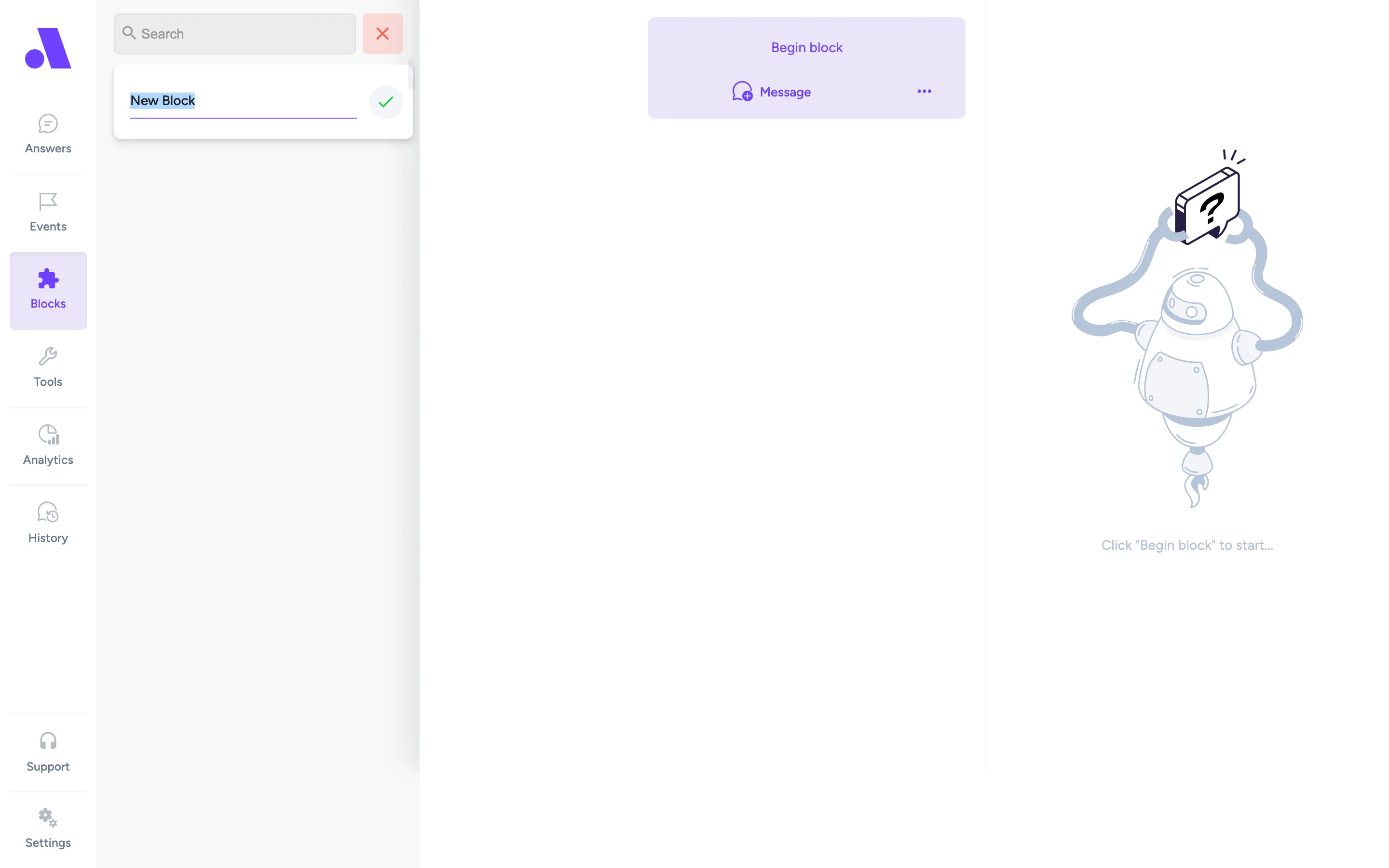
- Choose create a new one. The new block opens in this screen as “New Block”.
- Build the conversation with the same steps as an answer, then click Save changes.
- Back in the answer, pick the block in the list and click Use.
Once a block exists, Blocks shows in the sidebar and you can click Create Block there. Inside a block you can use messages, conditions, wait for input, API calls and AI answers. You cannot nest another block in a block.
Use a block in an answer: select it in the preview to see its name, with Edit block, View block usages and Remove block from answer.
Menu options per block:
| Option | What it does |
|---|---|
| Rename | Changes the block name. |
| View Usages | Lists the Answers and Events that use the block. The summary reads “The block is currently unused” or “The block is used in N Answers”. |
| Inline block & delete | Copies the block into every answer and event that uses it, then deletes the block. Cannot be undone. |
| Delete | Deletes the block (“Delete Block?”). Cannot be undone. |
Fields
Section titled “Fields”| Field | What it does |
|---|---|
| Name | The block name shown in the list and when you use it in an answer. |
| Conversation | Built in the same editor as an answer. A block can end with Exit the Block to continue the flow after the block. |
| Save changes | Saves the block. In a multi-market bot it is disabled outside the primary market. |
In multi-market bots, blocks can only be managed in the primary market (“Blocks can only be managed in the primary market”).