
Variables
A variable holds a piece of information you use in many places, such as a phone number, opening hours or a link. Change it once and every answer that uses it shows the new value.
Create a variable
Section titled “Create a variable”- Open Settings, then Variables.
- Click Add (or Create New Variable if you have none yet).
- Choose the scope (see below).
- Type the variable name. Use letters, digits, hyphens and underscores, up to 256 characters.
- Type the value, up to 1000 characters. It cannot be empty.
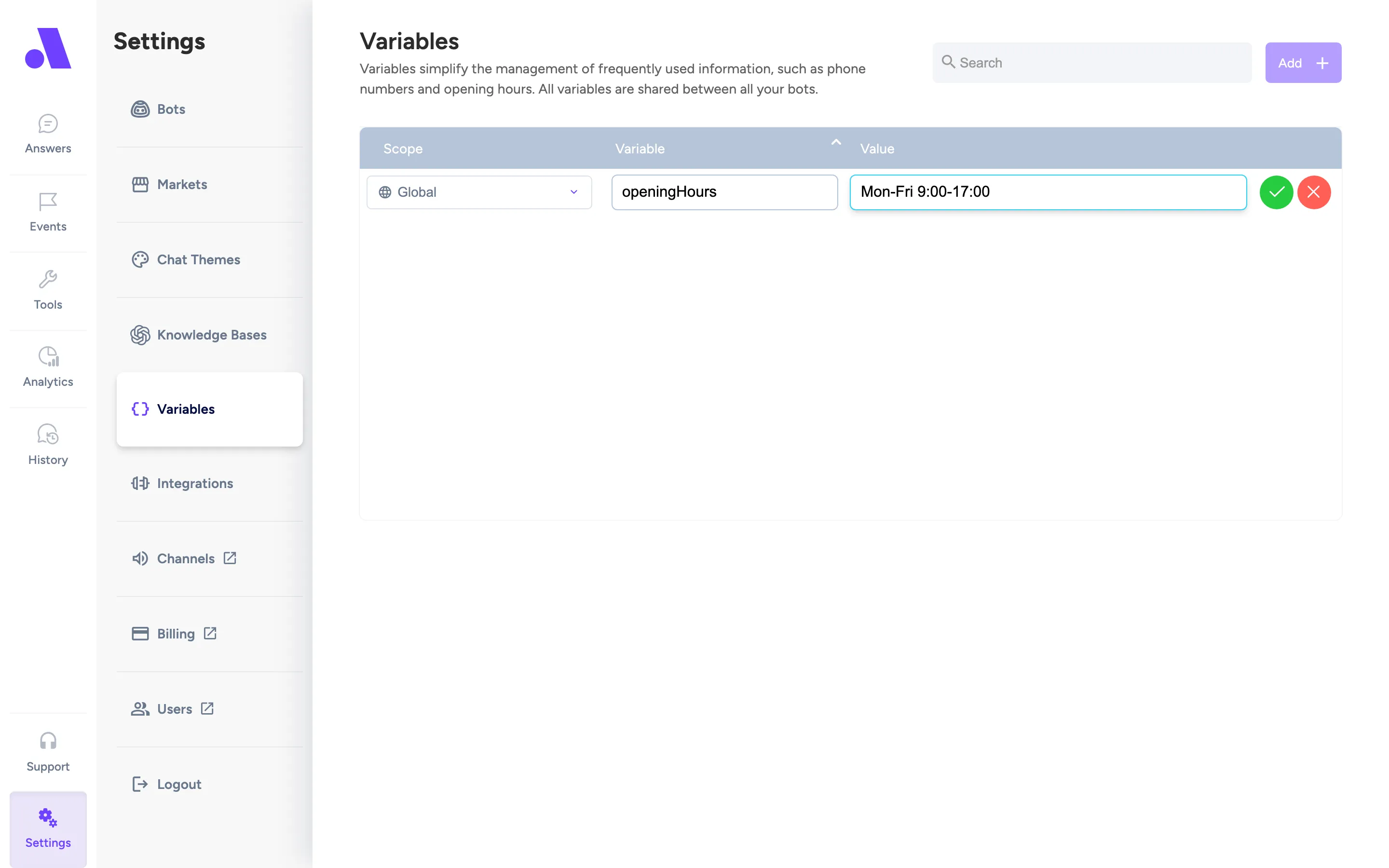
To edit a value, click it in the table. Use the search box to find a variable. Names that start with system_ are reserved and cannot be used.
Scopes
Section titled “Scopes”The scope decides which bots and markets get the value.
| Scope | Applies to |
|---|---|
| Global | All your bots and markets. |
| Bot | One bot. For a multi-market bot, all its markets. |
| Bot + Market | One market of a multi-market bot. |
You can use the same name at several scopes. The most specific one wins: Bot + Market over Bot, and Bot over Global. For example, set support_phone globally, then override it for the German market only.
For a Bot + Market variable, you pick the name from the variables that already exist for that bot.
Use a variable in an answer
Section titled “Use a variable in an answer”Type ${variable.name} in a message text, for example:
Call us on ${variable.support_phone}, open ${variable.opening_hours}.Variables also work in events, blocks, buttons and quick replies, and in the URL, headers and body of a tool. The preview in the answer editor shows the value for the bot you are editing.
If the name does not exist for that bot, saving fails with a message that the variable does not exist. Create it first, or fix the spelling.
See where a variable is used
Section titled “See where a variable is used”Hover over a row and choose View Variable Usages. The list shows the answers, events and blocks that use it, with a Show button to open each one.
Rename or delete
Section titled “Rename or delete”Renaming a variable also updates the ${variable.name} text in every answer, event and block that uses it. A Bot + Market variable that overrides a Global or Bot variable of the same name cannot be renamed. Rename the broader one instead.
You cannot delete a variable while an answer, event or block uses it. Remove it from those first, or replace it. Deleting a bot also deletes its variables, and the admin asks you to confirm.