
Answers
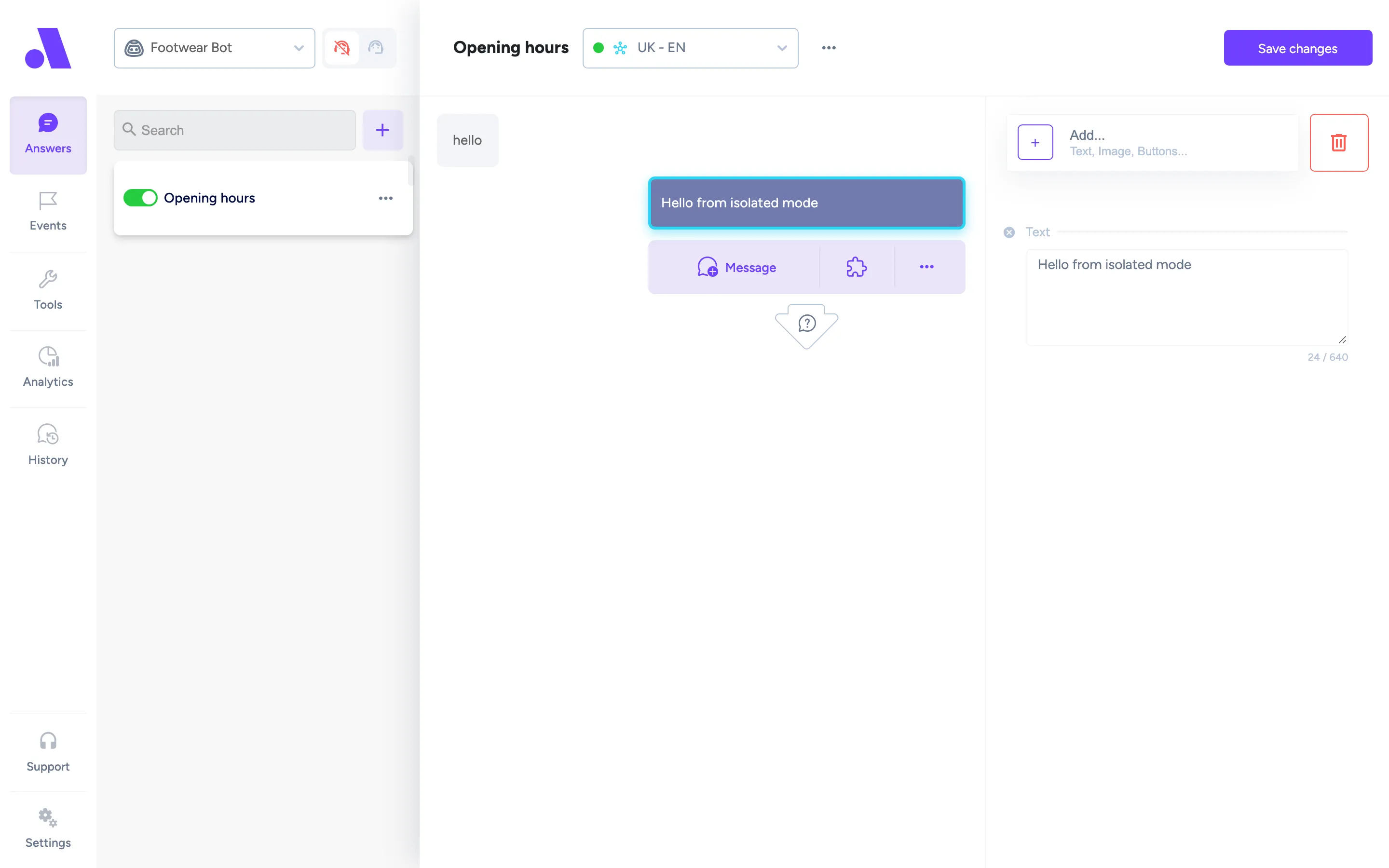
Answers (/bots/:botId/answers) is where you write what the bot says. The list on the left holds your answers. The right side is the conversation editor: a chat preview in the middle and an editor panel for whatever step you select. For the concepts behind answers, see Answers.
What you can do here
Section titled “What you can do here”- Create, rename, publish, unpublish and delete answers.
- Build the conversation step by step and check it in the chat preview.
- See where an answer is used (View Usages).
- In a multi-market bot, switch between the market versions of an answer.
Create an answer:
- Click Create Answer above the list. A new answer named “New Answer” opens, unpublished.
- Describe it in the Answer Description (click the customer bubble at the top of the preview).
- Add steps with the add bar under the conversation (see “Step types” below).
- Click Save changes.
- Turn on the publish switch when the answer is ready.
Delete: open the answer’s menu and choose Delete. The dialog “Delete Answer?” says it cannot be undone. In multi-market bots, answers are created, renamed and deleted in the primary market. Other markets edit the content only.
Menu options per answer: Rename, View Usages, Publish answer (all markets) or Unpublish answer (all markets), Enable auto translate, Delete. Some appear only in multi-market bots.
Publishing
Section titled “Publishing”The switch next to the answer name controls publishing for the current market. When on, the bot replies with this answer in that market. When off, the bot does not use it. The Unknown Answer is always published; the bot uses it when it does not understand the customer. You cannot publish an empty answer: the switch is disabled with the hint “To enable publish, you need: a response in the answer”.
Multi-market answers
Section titled “Multi-market answers”If a market is set to follow the primary market, its version is read-only and shows “Edit this market”. Clicking it stops automatic translation for that market and lets you edit it. To go back, choose Enable auto translate in the menu. The dialog “Enable auto-translate?” warns that changes to the source answer will be translated and applied to that market, and that existing edits will be lost.
Step types
Section titled “Step types”Under the conversation preview, the add bar offers Message, Use Block (the blocks icon) and a menu with the other step types. Select a step in the preview to edit it in the right panel.
| Step | What it does |
|---|---|
| Message | A bot message made of components: Text, Buttons, Quick Replies or Image. |
| Use Block | Inserts a reusable block. Pick one from the list (“Choose a block or create a new one”) and click Use. Selecting it later shows the block name with Edit block, View block usages and Remove block from answer. |
| Add Condition | Branches the conversation by cases, evaluated top to bottom. |
| Wait for customer input | Pauses until the customer replies, and can save and validate the reply. Needs a message before it. |
| Make API call | Calls an external URL and stores the response. |
| AI answer | The AI writes the reply from a knowledge base and your instructions. |
| Product recommendations | An AI step that recommends products from a product feed. Greyed out with “Connect a product feed first” until a feed exists. |
| Message transition | Appears at the end and decides what happens next. |
Message components
Section titled “Message components”The Add… picker in a message offers Text, Buttons, Quick Replies and Image. Image cannot be combined with the others. Quick Replies can only be added at the end of the answer.
| Component | Fields |
|---|---|
| Text | The message text, up to 640 characters. Variables can be used. |
| Image | Paste link to Image. |
| Buttons | Each button has a Title (25 characters, 20 when a non-webchat channel is connected) and a Button Type. Website: opens the link in a new tab (field Link to). Phone: dials the number (field Phone number, up to 20 characters). The best practice is to also write the number in the text. Action: continues in the conversation flow, creating a new path. Callback: runs a JavaScript callback your website can react to, for example adding an item to the basket (field Payload, up to 1000 characters). |
| Quick Replies | Each has a Title (same limits as buttons) and an Automation Result: Fully Automated, Partially Automated, Wrong Answer or None. The result is registered in analytics when the customer clicks that quick reply. |
Add Condition
Section titled “Add Condition”Add a case with Add case. Case types: Operator Status (operators online or offline), Day (days of the week), Time Between (From and To, for example 08:00 to 18:00), Channel (Amio Chat, Messenger, WhatsApp), Customer’s URL (the page the customer is on; up to 5 conditions combined with AND or OR, each “with” or “without” some text), and Context (a Context Path such as the key you saved earlier, compared with a Condition Value using Equals or Regex). Email bots also get AI Call Operator. Drag cases to reorder them. The last case, “This is active when no other condition is met”, is the default.
Wait for customer input
Section titled “Wait for customer input”| Field | What it does |
|---|---|
| Save input as | Saves the reply in the conversation context under the key you type (up to 30 characters). Use it later as the variable shown below the field, for example to print what the customer said or send it to your server. |
| Validation | Email, Phone, Custom or None. |
| Field title | Title of the input that your customers will see. Use your chat target language. |
| Regex rule | Custom validation only. Up to 500 characters. |
| Error message | Message shown when an incorrect value is entered. Use your chat target language. |
| Default dial code | Phone validation only. |
Make API call
Section titled “Make API call”Choose the HTTP verb (GET, POST, PUT, PATCH, DELETE, HEAD, OPTIONS) and enter the URL. Fill in Headers and Body as JSON, or check the cURL tab, which can interpolate variables and copy the command. Test API call runs the request; when the request uses variables, a settings button lets you enter test values (used only for testing). The response is available to conditions as the context path for the response body, or the HTTP status. If the URL is behind a firewall, the editor shows the IP address to whitelist.
AI answer
Section titled “AI answer”| Field | What it does |
|---|---|
| Model dropdown | Which AI model writes the reply. |
| Knowledge base | What the AI answers from. Leave it at None for a general answer. If none exist, “Create one?” opens the knowledge base editor. |
| Instructions | What the AI should do in this answer. For example: reply to questions about shoes, and to anything else say you only answer questions about shoes. |
| Tools | API calls the AI may decide to make while writing this answer. It only sees the tools selected here. |
| Allow LLM to use structured input fields | Lets the AI collect exact values it needs for a tool (email, phone, order number) through validated input fields instead of free text. Webchat only; the answer should end with “Continue or Find answer” so the reply returns to this action. |
Email bots show a note: if the AI suggests handing an email query to an operator, the bot does not send an email response. Use the AI Call Operator condition case to send a reply and/or call an operator.
Product recommendations
Section titled “Product recommendations”Uses the same Knowledge base field (here, the product feed to recommend from). Instructions are optional: what to ask about and anything specific to your shop, for example ask about budget, size and intended use. The editor also has a Layout choice and toggles for quick filters and a continue option.
Message transition
Section titled “Message transition”The last step of a conversation decides what happens after the final message.
| Option | What happens |
|---|---|
| Call Operator | The assistant hands the request to a customer support agent. |
| Wait for Input, then Call Operator | Waits for the customer’s reply, then hands over to an agent. |
| Find Answer | Waits for customer input, then finds an appropriate answer. |
| Continue to Answer | Continues in another answer you pick. View Answer opens it. |
| Continue this Answer or Find Answer | The AI first decides whether the customer keeps talking about this answer’s topic. If yes, this answer replies again. If not, the assistant finds an answer. |
| Exit the Condition | Leaves the condition and continues with messages defined after it. |
| Exit the Block | Leaves the block and continues with messages defined after it. |
Which options appear depends on where you are: inside a condition, a block, or an empty answer.
Fields
Section titled “Fields”| Field | What it does |
|---|---|
| Name | The answer’s name in the list. Rename from the menu. |
| Answer Description | 1-3 concise sentences explaining the user’s goal for this answer. Keep it specific, avoid examples unless necessary, and make sure it does not overlap with other answers. Up to 2000 characters. If not filled, the answer name is used. |
| Publish switch | Publishes or unpublishes the answer in the current market. |
| Save changes | Saves the answer. Shows “Saved!” or “Saving failed!”. Disabled until the answer is created and while a market is read-only. |