
Prepare your Facebook page for Messenger
A Messenger channel is tied to a Facebook page. Before Amio can connect it, the page must exist, you must be its admin, and messaging must be on.
Prepare the page
Section titled “Prepare the page”- If you don’t manage a Facebook page yet, create one.
- Open your page and go to its settings.
- Find the messaging settings and allow people to contact the page privately with the Message button.
- Save.
Here you can also set a greeting and an away message, and details that help people find you, such as category and keywords.
Connect the page to Amio
Section titled “Connect the page to Amio”You can’t connect a Facebook page yourself in the admin. Ask Amio support, and have your page ID and a page access token ready. After support creates the channel, you deploy your bot to it as described on the Messenger channel page.
Let customers find you
Section titled “Let customers find you”Customers can start a conversation with you, and for most businesses this is the only way, because you can only message people who wrote to you first.
- Message button on your page. Customers tap Message on your Facebook page. Turn it on as above.
- Ads. Run ads on Facebook and Instagram that open a Messenger conversation. Set these up in Meta’s ads tools.
- Messenger link. Share a
https://m.me/<your page username>link on your website, in emails and on print. - Sharing. Customers can share your page or forward your messages to friends.
For a chat on your own website, use webchat instead.
Messenger policy
Section titled “Messenger policy”You must follow Meta’s Messenger Platform policy. The main rule is the 24-hour window: you have up to 24 hours to respond to a customer after their last message, and messages in that window may contain promotional content. Customers can block or mute a conversation with your page at any time.
Use your own Facebook app (optional)
Section titled “Use your own Facebook app (optional)”By default Amio connects to Facebook through its own Facebook app. You only need your own app if you want full control, for example your own name and logo on the Facebook login screen when connecting pages.
The screenshots in this section show an older version of Meta for Developers. The steps are the same, but the screens look different today.
-
In Meta for Developers, create a Business app. One app serves many pages.
-
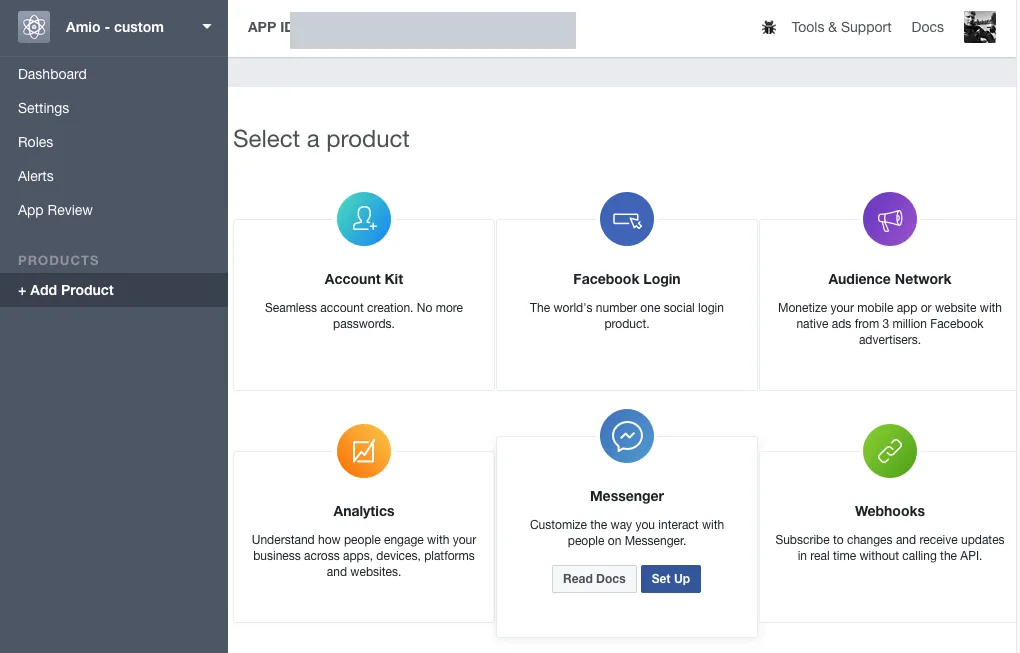
Add the Messenger product.
-
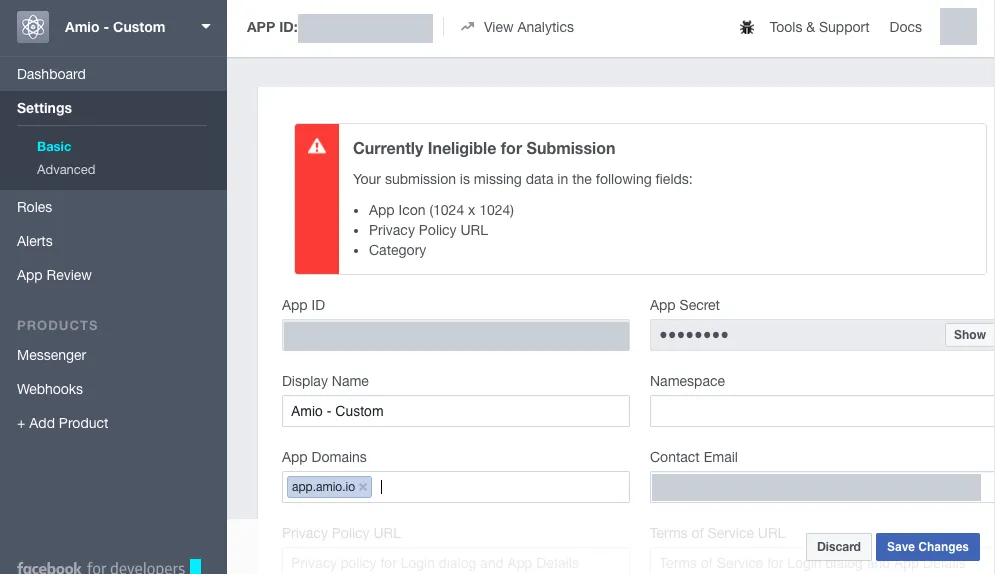
Send the App ID and App secret to Amio support.
-
Support sends you a Callback URL and a Verify token. In the app’s Messenger settings, open Webhooks, enter both and subscribe the page to these fields:
messages,message_deliveries,messaging_postbacks,message_reads,message_echoes,messaging_optins,messaging_account_linking.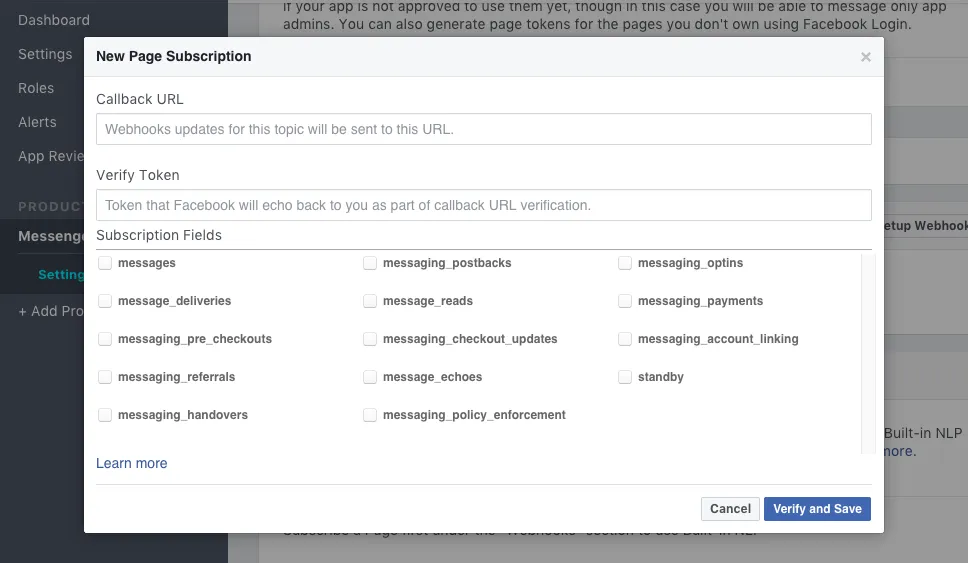
-
While the app is in development mode, only the app’s admins, developers and testers can message the page. To go public, submit the app for App Review and request
pages_messaging(and the permission that lets you connect the page).