
Knowledge bases
A knowledge base is a collection of your content that the AI searches when it writes a reply. You add one or more sources, Amio reads them, and the AI uses the most relevant parts to answer a customer.
What you can add as a source
Section titled “What you can add as a source”| Source | Use it for | Notes |
|---|---|---|
| XML Feed | Product catalogues | Give the URL of your feed. The feed must already be generated. A feed that is built on request is not accepted. |
| File | Policies, price lists, FAQs | Upload a file, or give a URL to one. Uploads are limited to 1 MB. |
| Web Page | A help page or policy on your website | Marked BETA in the admin. Amio reads the page and stores its text. |
| Website | Your whole shop site | Marked BETA in the admin. Enter your domain. Amio reads the sitemap, sorts the pages and keeps the FAQ, shipping and terms pages up to date. It also loads your products. See below. |
For a web page you also choose how to store the text. TXT File keeps all the original content. Markdown File lets GPT reformat it, which suits complex pages, but GPT might change the content. You can tick Additional formatting with GPT? and write a Scraping Prompt, for example “Extract the return policy.”. Preview scraped content shows what was read. If the page needs a login or token, tick Add header to the scraping request? and enter the header.
If your page or feed is behind a firewall, the form shows an IP address to whitelist. Copy it from there.
Add your whole website
Section titled “Add your whole website”A Website source is for a shop whose site holds more than a few pages. You enter the domain once and Amio finds the pages in the sitemap. It sorts them into product pages, category pages, content pages and excluded pages (filters, pagination, pages blocked in robots.txt, promo and seasonal pages).
- Content pages such as FAQ, shipping, returns and terms become answers. They are read like a Web Page source, without menus, footer or cookie bar.
- Product pages with schema.org Product data and a price are loaded as products. Out-of-stock products are not loaded. If the knowledge base has an XML product feed, the feed’s products replace the crawled ones once it indexes. Before the bot sends a product card, Amio re-reads the page for the current price and drops the card if the product is gone or out of stock. Sources created earlier keep indexing product pages as Content.
- Category pages become category cards. With Suggest categories switched on in Product recommendations, the bot can send a customer to a category.
You check the sorted list once before anything goes into the bot, and you can move a page to another group or exclude it. After that Amio picks up new pages and changes by itself, at most once a week. During the trial, a Website source loads up to 2,000 products and 50 categories. Paying lifts the limit and starts loading the rest right away. Steps are in Knowledge Bases.
Create a knowledge base
Section titled “Create a knowledge base”- Open Settings, then Knowledge Bases.
- Click the add button to open Create New Knowledge Base.
- Enter a Knowledge Base Name, for example “Sales campaign”.
- Choose a Knowledge Base Scope. Global uses one set of content for all markets. Market creates a group with a separate knowledge base per market. Pick the markets it covers.
- Click Add source. Enter a Source Name, choose the Data source (XML Feed, File, Web Page or Website) and fill in its fields.
- Optionally switch on Repeated updates to refresh the content on a schedule (see below).
- Click Create. A message says the knowledge base is being created. This may take a few minutes.
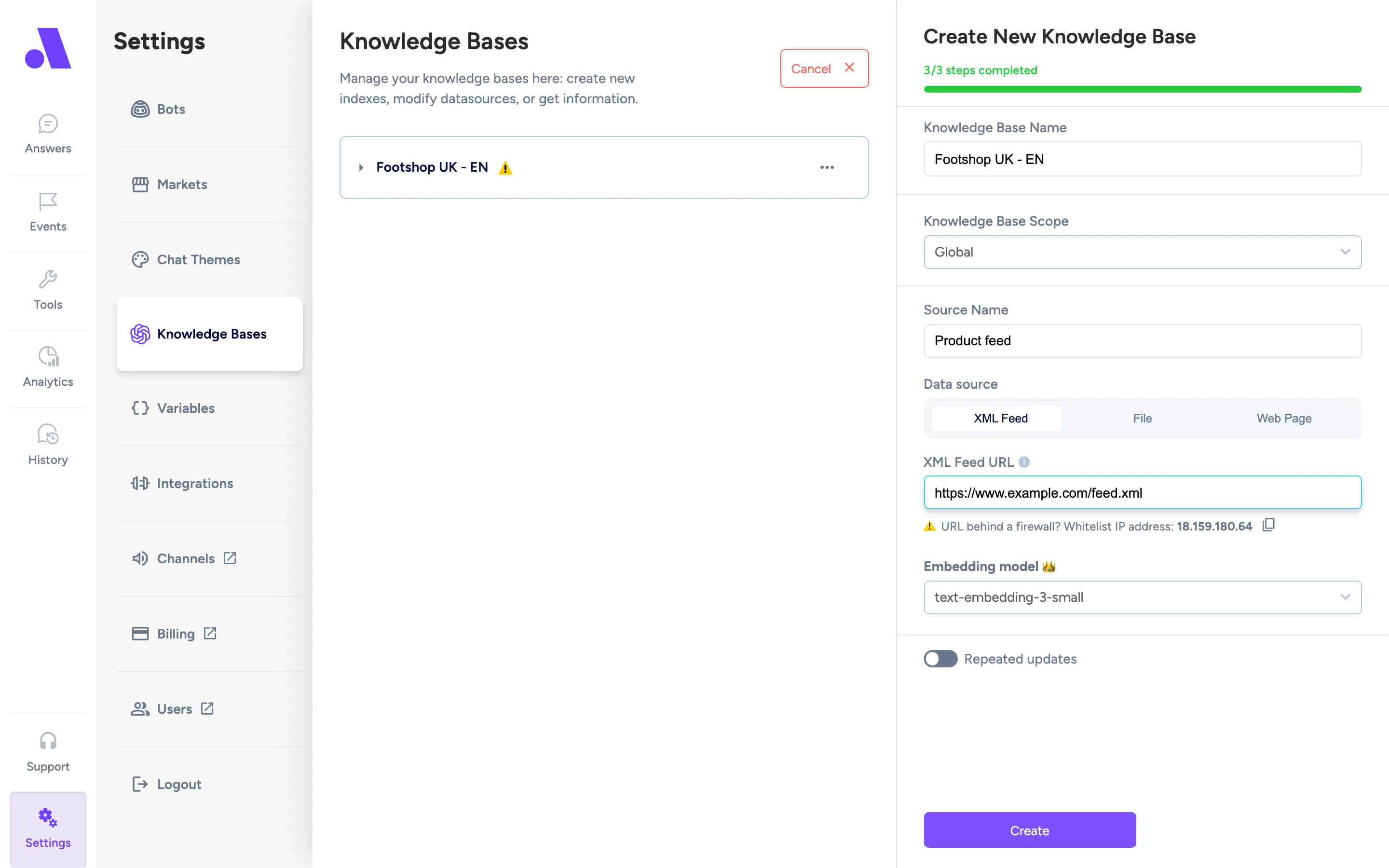
For an XML feed you only need the URL. Amio works out the product fields from the feed during the first indexing.
To add more content later, open the knowledge base and use + Add source. In a market group, use + Add market to add another market.
Keep it up to date
Section titled “Keep it up to date”Amio reads your sources once when you create the knowledge base. Content you change afterwards is not picked up until the next update. There are two ways to update.
- Reindex now in the knowledge base panel runs an update immediately. The knowledge base menu also has Reindex, and for market groups Reindex all markets.
- Repeated updates on the Scheduler tab runs updates on a schedule: Monthly or Weekly, at a time you set, with a day of the week or month. Avoid peak hours. A Daily schedule has extra costs, so contact support@amio.io to enable it.
Check that it worked
Section titled “Check that it worked”Each source shows a status icon. Hover over it for details.
- Queued: waiting for its turn.
- Processing: downloading and indexing. Each step can take up to several hours for a large dataset. Refresh the page to see progress.
- Finished: ready to use. A warning icon means some products were too long or had no searchable text. The tooltip gives the count.
- Error: the tooltip shows the reason.
A knowledge base that shows Never indexed has a schedule but has not run yet. Click Reindex now to run it.
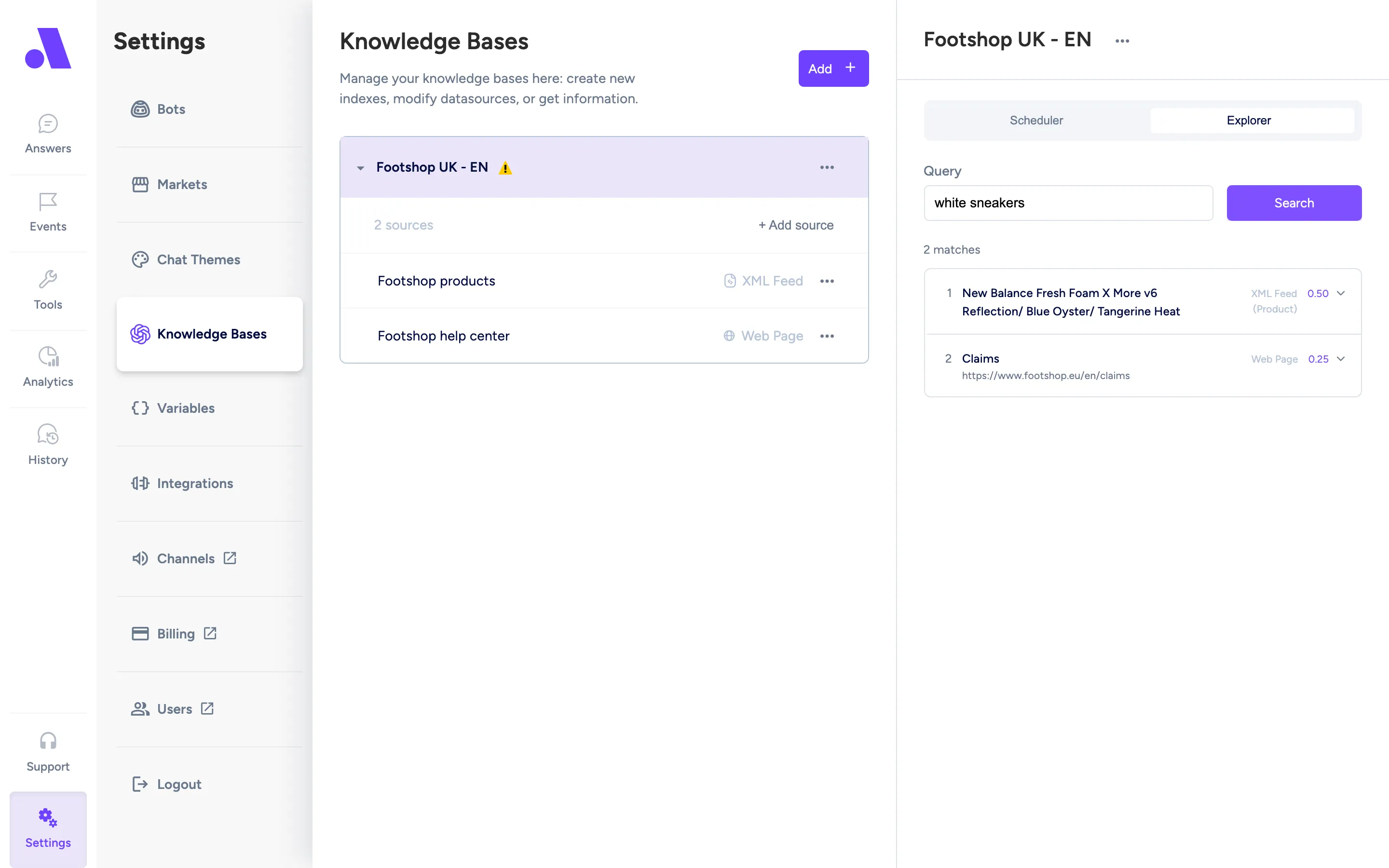
Then test what the AI can find. Open the knowledge base and switch to the Explorer tab. Type a Query and read the results and their content. If a question you expect customers to ask returns nothing useful, the content is missing from your sources.
Use it in an answer
Section titled “Use it in an answer”Add an AI answer step to an answer, then pick the knowledge base in the Knowledge base field. Leave it on None (general answer) if the AI should not read any of your content. For product feeds, add a Product recommendations step instead. See AI agent.
When the AI step shows “Knowledge base is not ready”, creation is still in progress. The bot can use it once it finishes.
Delete a knowledge base
Section titled “Delete a knowledge base”Use Delete in the knowledge base menu and type its name to confirm. To remove just one source, use Delete source in that source’s menu. Deleting a knowledge base removes all its data and cannot be undone. Answers that use it will have no content to read from.