
Finding your way around
The admin has a main menu on the left, a content area in the middle, and a Settings area with its own list of sections.
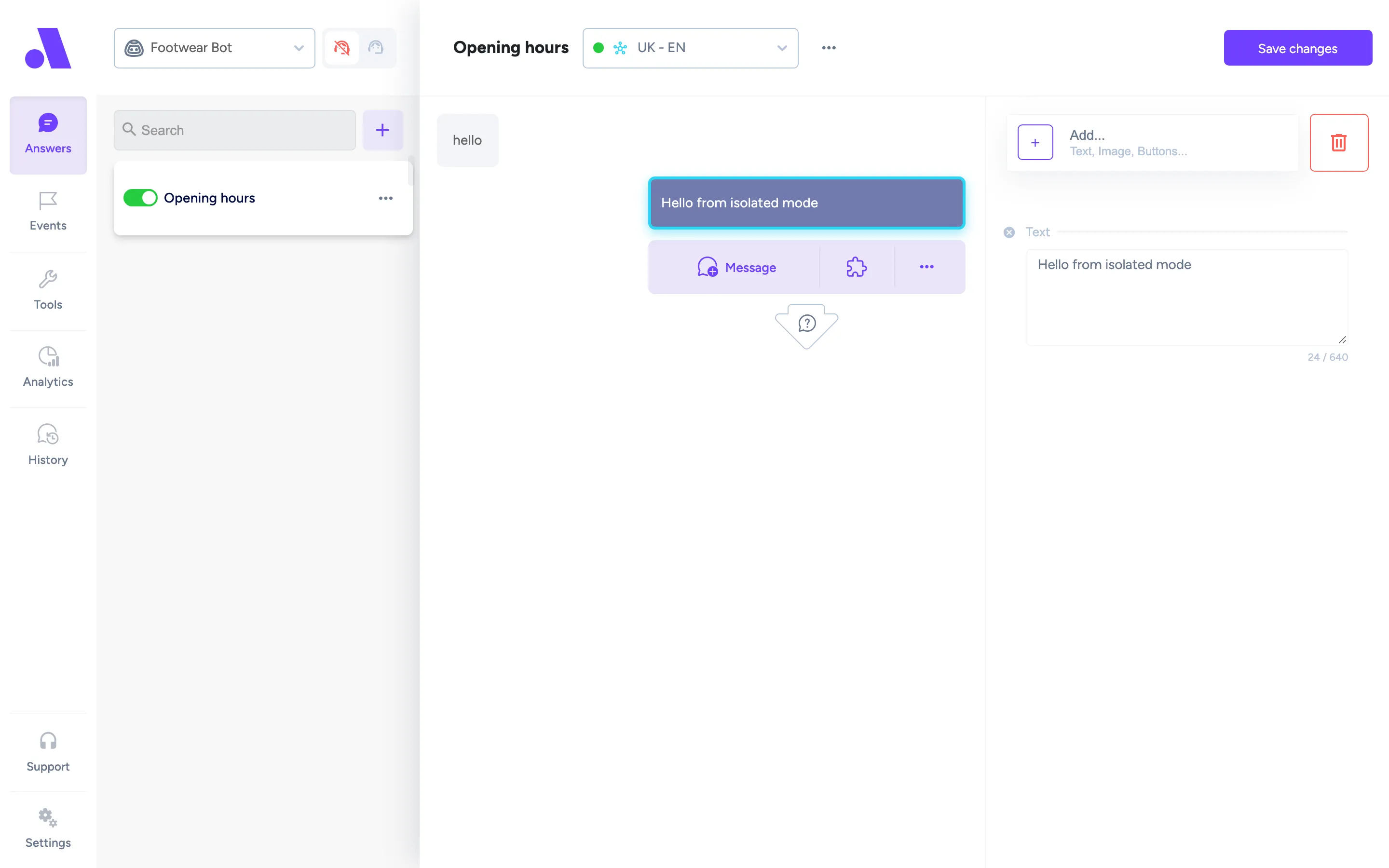
Main menu
Section titled “Main menu”The icons on the left side of the window are the same on every screen. Click one to open that screen for the bot you are working on.
| Menu item | What it opens |
|---|---|
| Answers | The answers editor, where you build what the bot says. |
| Events | Events, which start a conversation from something other than a customer message. |
| Blocks | Reusable blocks. This item appears only after the bot has at least one block. |
| Tools | Tools the AI agent can call. Tools belong to your organization, not to one bot. |
| Analytics | Analytics charts. |
| History | History, the list of past conversations. |
At the bottom of the menu:
- Support opens a menu with Chat (talk to the Amio support team) and Report a bug. A dot on the icon means you have an unread reply.
- Settings opens the Settings area.
Until you have created a first bot, Answers, Events, Blocks, Analytics and History are greyed out with the hint “will be available after a bot has been created”. Tools stays available.
Bot and market switcher
Section titled “Bot and market switcher”Answers, Events and Blocks show a bot selector at the top. Open it to switch to another bot. If a bot has several markets, each market appears as its own entry, and the icon next to it shows whether its content is the source content, translated automatically, or edited by hand. See Markets.
Analytics and History work across bots. They have their own bot filter, so you can look at one bot or several together.
Next to the selector there is an operator status switch. Its tooltip reads “Virtual assistant can respond differently based on whether the operators are online or offline. It has no effect unless you use a condition case called ‘Operator Status’.” Use it to tell the bot whether your team is currently available.
Settings
Section titled “Settings”Settings has its own list on the left. Each entry below opens in the same window.
| Entry | What it opens |
|---|---|
| Bots | Bots: create bots, add channels, get the webchat embed code. |
| Markets | Markets |
| Chat Themes | Chat themes for the webchat look. |
| Knowledge Bases | Knowledge bases the AI agent answers from. |
| Variables | Variables |
| Integrations | Integrations |
| Channels | Opens the Amio messaging app in a new page, where channel connections are managed. |
| Billing | Opens the billing page in a new page. |
| Users | Opens user management in a new page. |
| Logout | Signs you out. |
The email template is not in the main menu or the Settings list. Email bots show an Edit Header and Edit Footer option in the preview, see Email template.