
How the bot works
Every customer message goes through the same steps, whatever the channel. Knowing them tells you which part of the admin to change when the bot says something you did not expect.
From message to reply
Section titled “From message to reply”- The message arrives. A customer writes in any channel connected to the bot: webchat, WhatsApp, Messenger, Telegram or email. The bot reads text messages. Files are kept in the conversation history, but the bot does not react to them.
- The bot checks where the conversation is. If the last answer is waiting for the customer (for example it asked for an order number), the message continues that answer. Otherwise the bot looks for the right answer.
- The bot finds an answer. It compares the customer’s message, and the conversation so far, with the description of every published answer. It picks the closest match. If nothing fits, it uses the Unknown Answer. See Answers.
- The answer runs. An answer is a short flow. It can send fixed messages, branch on a condition, wait for the customer to type something, call an API, or hand the writing to the AI.
- The AI writes a reply, if the answer has an AI answer step. The AI follows the instructions you wrote for that step. It can read from a knowledge base and call tools. Your AI agent settings shape how it sounds.
- The answer ends. The last step of an answer decides what happens next: wait for the next message and find a new answer, stay in the same answer, continue to another answer, or call an operator.
Handing over to a person
Section titled “Handing over to a person”An answer hands over when it ends with Call Operator or Wait for Input ➔ Call Operator. The bot then stops answering and passes the conversation to your operators.
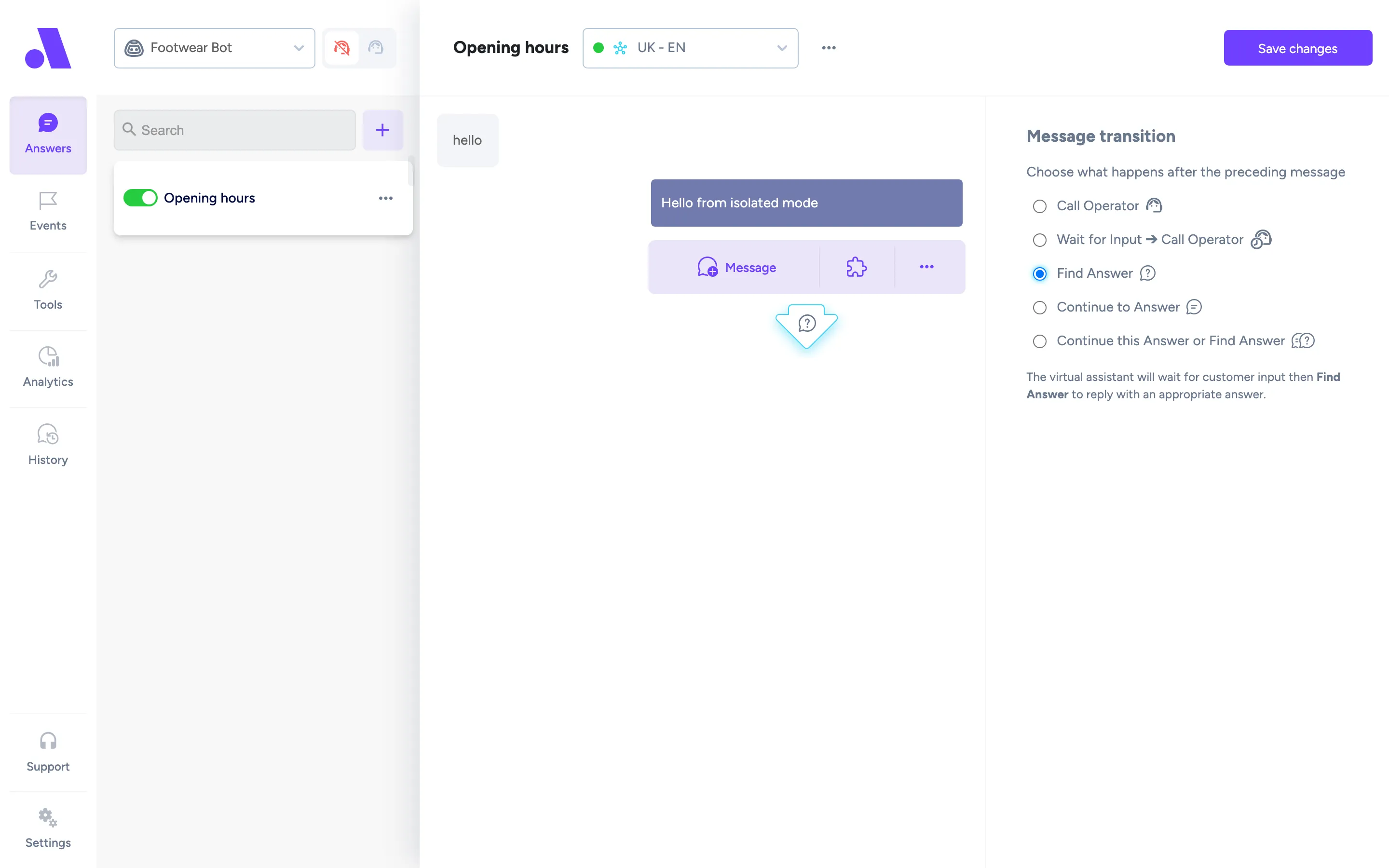
On chat bots, someone has to receive the conversation. Handover works only when the bot is connected to an operator tool, such as Daktela, Freshchat or an email help desk. See Channels and integrations for which tools receive a handover. Without one, nobody picks the conversation up.
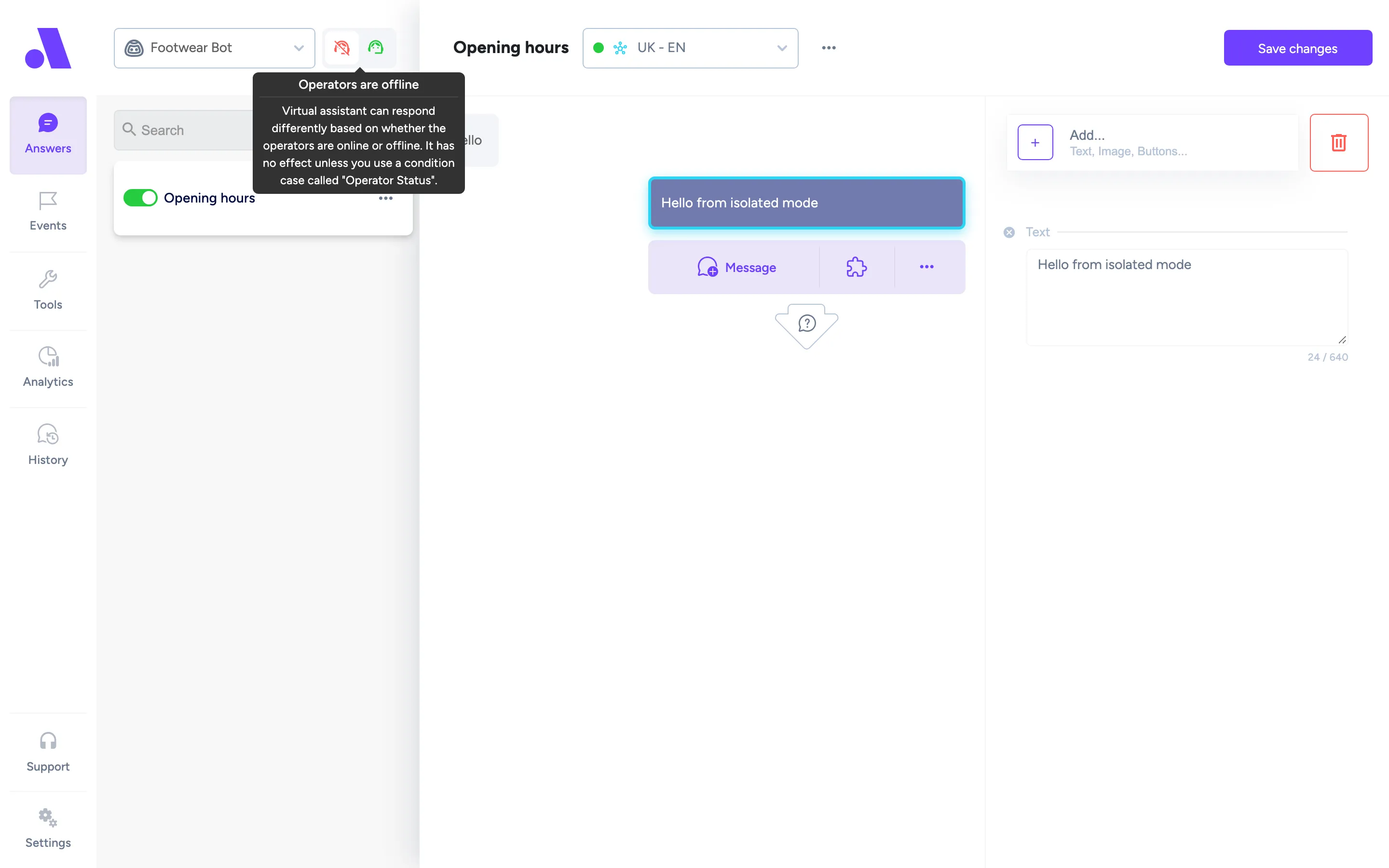
To hand over only during working hours, add a condition with the case Operator Status before the answer ends. Operator Status is the switch in the admin header that you turn on and off yourself. It does not detect whether an operator is actually online. When it is off, let the bot explain your opening hours instead.
On email bots, the AI decides whether to send a reply or hand over. When it hands over, no email goes to the customer and the Daktela ticket goes to an operator, with the Ticket category set on the email channel. Use the condition case AI Call Operator if you want the bot to do something before or after the handover. You can edit the rules the AI follows in the Email handoff prompt on the bot’s settings page.
Events and blocks
Section titled “Events and blocks”Answers react to what the customer says. Two other building pieces cover the rest.
Events
Section titled “Events”Events react to something that happens in the conversation. Open Events in the admin and pick a type:
- Welcome Message: when a customer opens an empty webchat, or taps Get Started in Messenger. The bot speaks first.
- Web Chat Opened: when a customer comes back to webchat after a longer break (Amio Chat only). Amio support sets how long the break must be, and the event is off until they do. Write to support@amio.io.
- Custom Event: one you trigger from your own page with
window.amioWebchat.triggerEvent(...). The event’s Copy code button gives you the line to paste. See Control the chat from your page. - Chat Ended: when an operator closes a handed-over chat in Daktela, Freshchat, Genesys, Salesforce or SupportBox. Use it to ask for feedback, for example.
- Chat Timeout: a technical event for Daktela, Genesys and Salesforce chats. It fires when a handed-over chat expires in the operator tool because nobody wrote for a while. Amio support sets the period for each integration. You only need it if you use one of these tools.
An event has the same flow editor as an answer.
Blocks
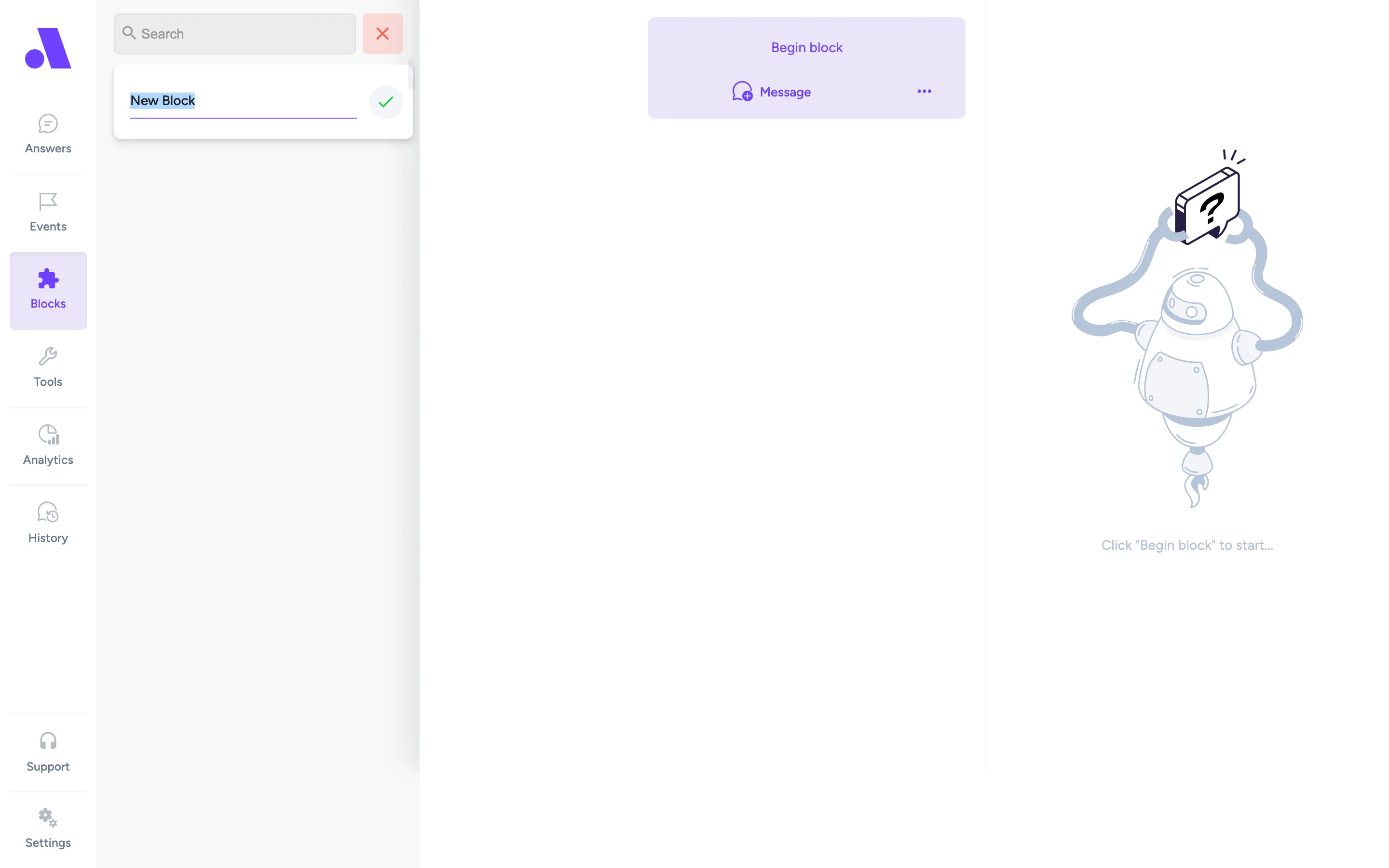
Section titled “Blocks”Blocks are reusable pieces of a conversation. Build a piece once in Blocks, then add it to any answer or event with the Use Block button. Edit the block and every place that uses it changes. Use View Usages to see where a block is used. Deleting a used block offers to copy it into each place first (Inline block & delete).
Where each piece lives
Section titled “Where each piece lives”| You want to change | Go to |
|---|---|
| What the bot says for a topic | Answers |
| Facts the AI can look up | Knowledge bases |
| The assistant’s name, tone, reply length | AI agent |
| Text that changes per market, such as phone numbers | Variables |
| Live data such as order status | Tools |